
Triggers and timing
The trigger decides what starts an automation, the timing decides when it acts: right away, a number of days later, or on a date. Waits are always whole days, sent at the time of day you choose.
The trigger decides what starts an automation, the timing decides when it acts: right away, a number of days later, or on a date. Waits are always whole days, sent at the time of day you choose.
Triggers
- Subscribed: someone signs up through a signup form (with double opt-in: when they confirm).
- Opened / Clicked: a contact opens a campaign or clicks a link in one. Campaign opened / Campaign clicked: the same, for one campaign you choose. For clicks you can enter one exact link.
- Campaign not opened / Campaign not clicked: a number of days after a campaign was sent, for the contacts who received it but didn't open it or click in it.
- Not opened / Not clicked: a number of days after a contact subscribed, if they have never opened or clicked any email.
- Subscribe date / Date field: a date of the contact, such as the day they subscribed or a birthday stored in a date field.
Timing
- Instantly: as soon as the trigger happens.
- Delayed: wait the number of days you enter, then run at the time of day you set.
- Once or repeat: "once" runs at most one time per contact, "repeat" runs every time the trigger happens.
- For date triggers: "Date" and "Yearly" use only the day and month; "Exact date" also uses the year.
Send a follow-up a few days later
-
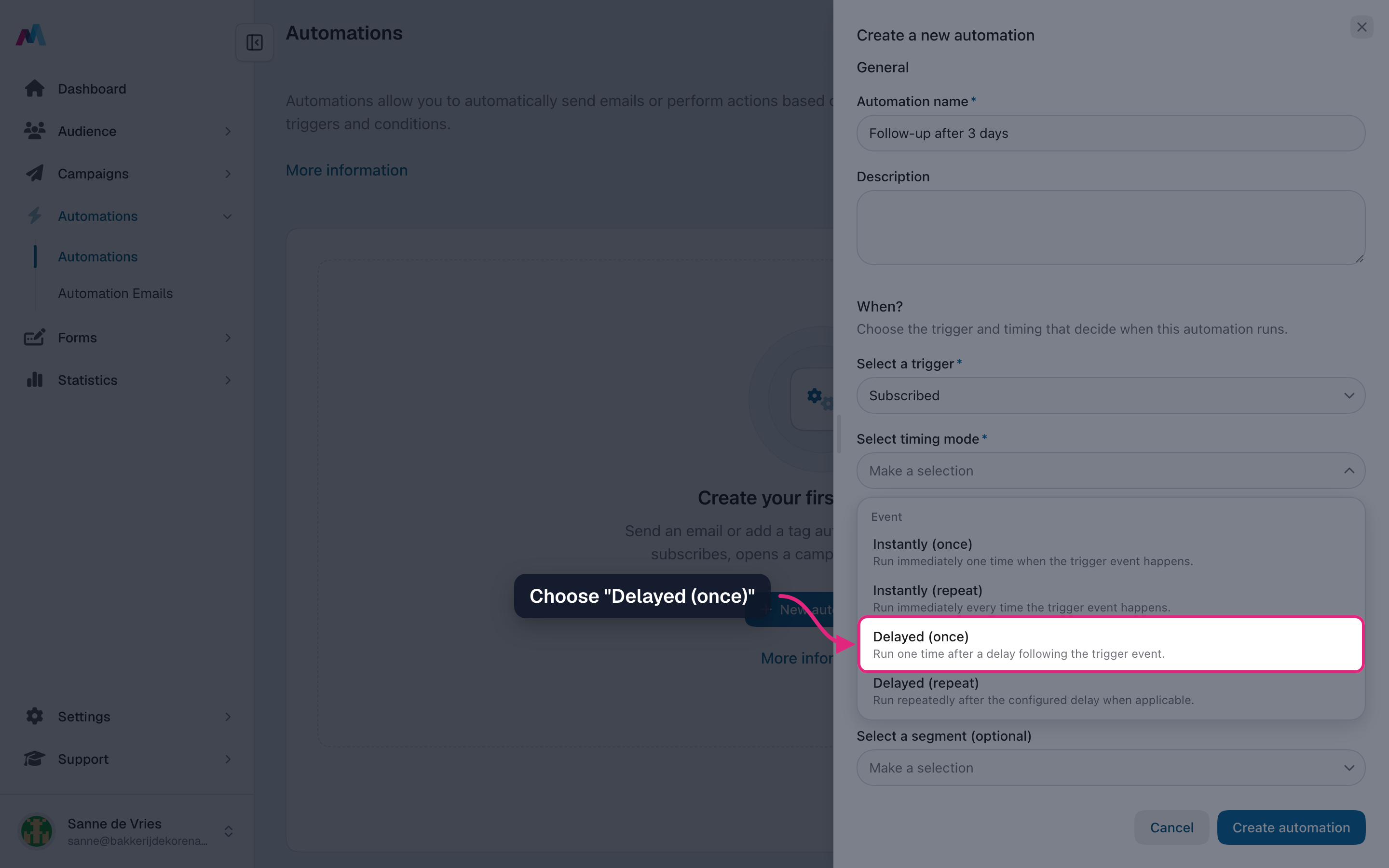
Create a new automation with the trigger "Subscribed" and choose the timing "Delayed (once)".
-
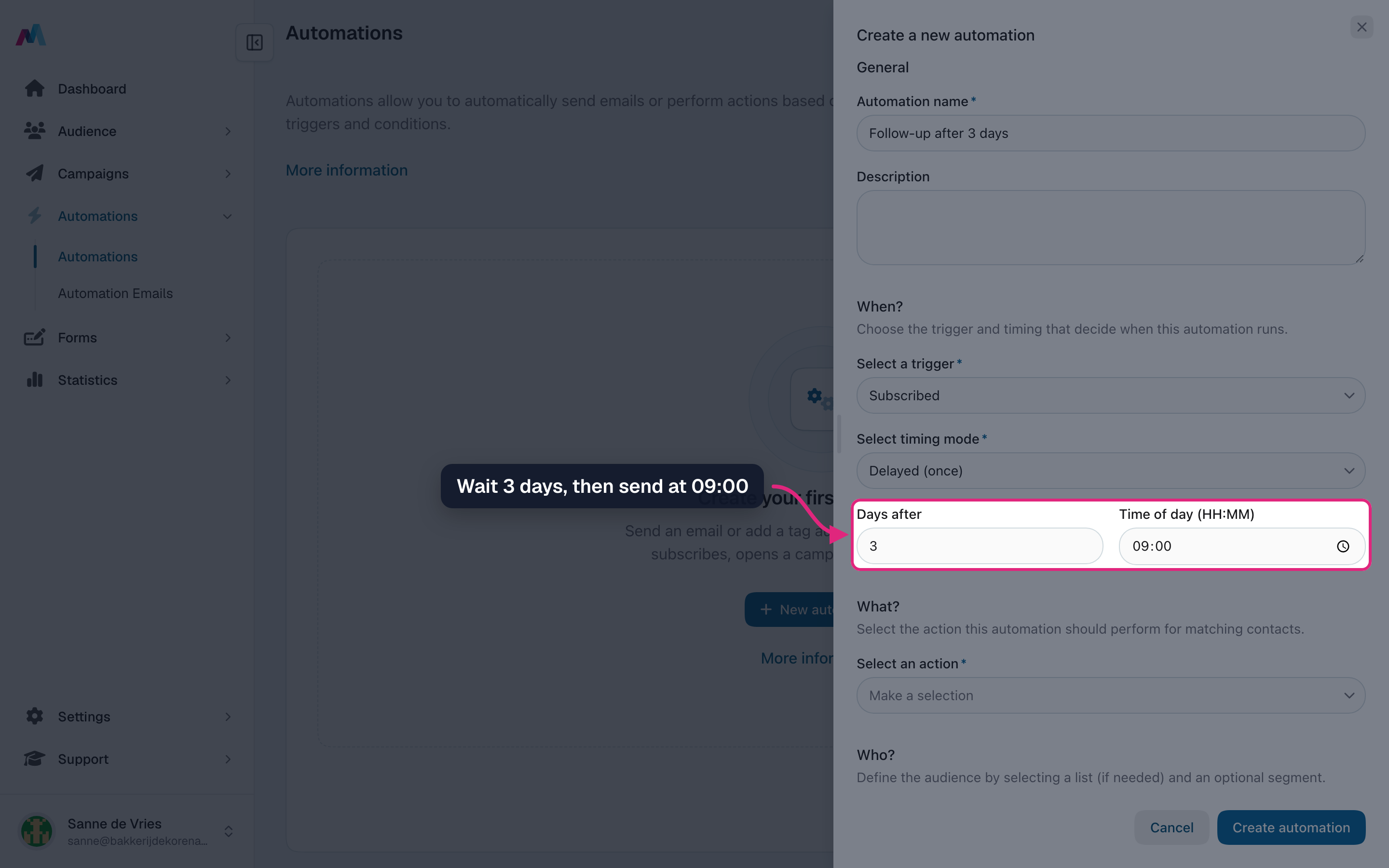
Enter the number of days to wait and the time of day to send. Then choose the email and create the automation as usual.
Building a seriesAn automation sends one email. For a series, create one automation per email with the same trigger and a different number of days, for example 0, 3 and 7 days after subscribing. Each wait counts from the trigger, not from the previous email.
How do I send a birthday email?
Store birthdays in a contact field of the type date (create one under Fields if you don't have one). Then create an automation with the trigger "Date field", pick that field and choose the timing "Yearly", with the time of day you want. Only the day and month count, so the year of birth doesn't matter. Contacts without a birthday in the field are skipped.
How does a wait work exactly?
The automation waits the number of days you entered, counted from the trigger, and then sends at the next moment that matches your time of day. Example: someone subscribes on Monday at 14:00, with 3 days and 09:00 they get the email on Friday at 09:00.
Can I wait hours instead of days?
No, waits are whole days. For something right away, use an "Instantly" timing.
What happens if I change the days or time of an active automation?
The form tells you what applies to your trigger. In short: for "Subscribed", "Opened" and "Clicked", the new wait only applies to contacts who come in after the change. For date triggers, contacts whose moment falls between the old and new setting may be skipped. For "Campaign not opened" and "Campaign not clicked", the planned send moves along.
What does "Add tag" do?
Instead of sending an email, the automation gives the contact one or more tags, for example "Clicked the autumn offer". You can then use that tag in a segment for a campaign or another automation.
See also
Updated about 9 hours ago