
Workspace
Let colleagues and external people work in your account with their own login, without sharing your password.
Let colleagues and external people work in your account with their own login, without sharing your password.
Your workspace is your account as seen by the people you invite. A workspace member keeps their own login and switches to your workspace from the user menu. Inside it they work with user-level access: campaigns, contacts and reports, but not billing, users or account settings.
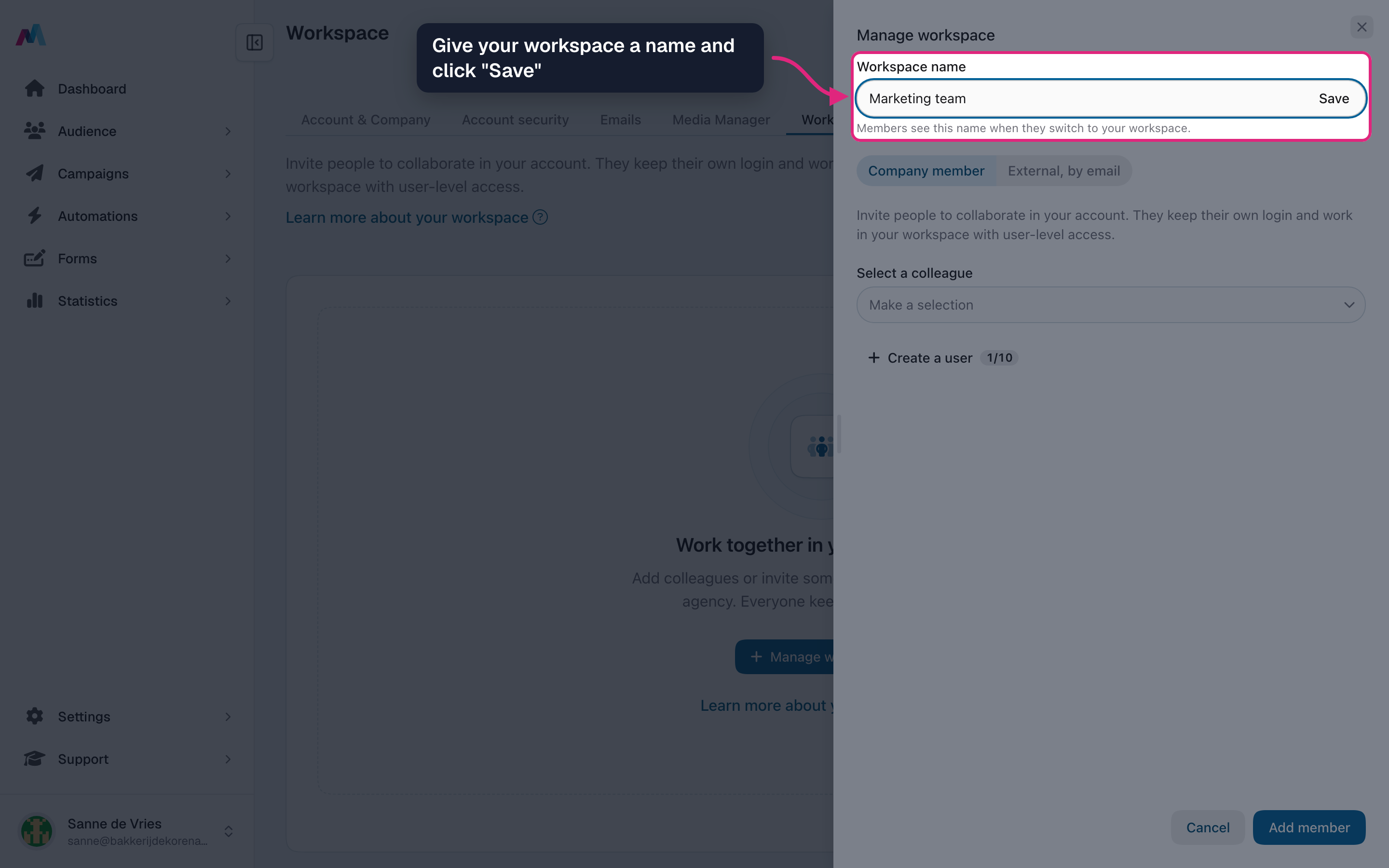
Naming your workspaceYour workspace starts out named after your own user. You can give it a name of your own, such as your team or company name, at the top of the "Manage workspace" panel. Members see that name when they switch to your workspace.
Adding a member
-
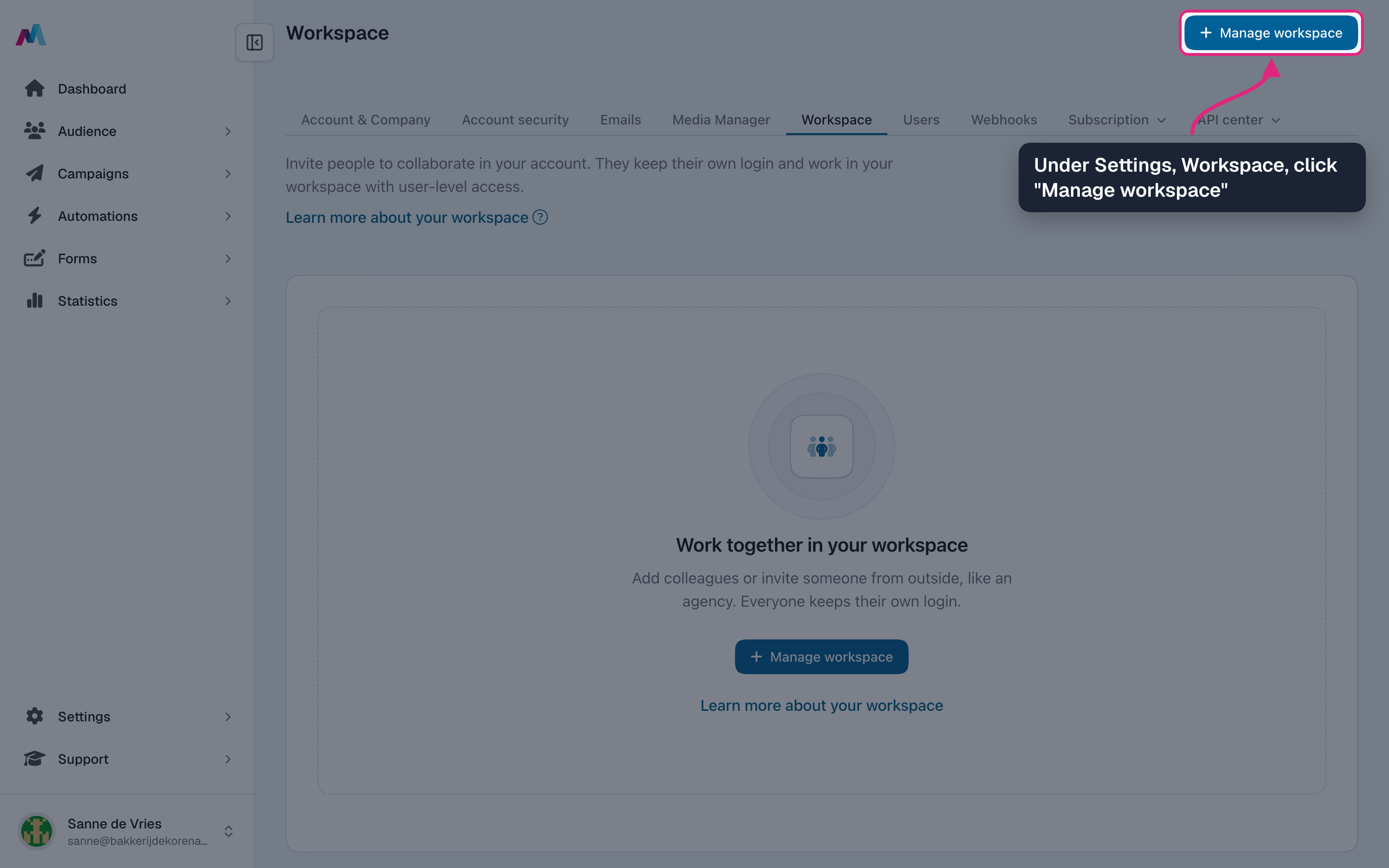
Go to Settings, Workspace and click "Manage workspace". Once your workspace has members, the same button reads "Invite member".
-
Give your workspace a name, such as your team or company name, and click "Save". Members see this name when they switch to your workspace.
-
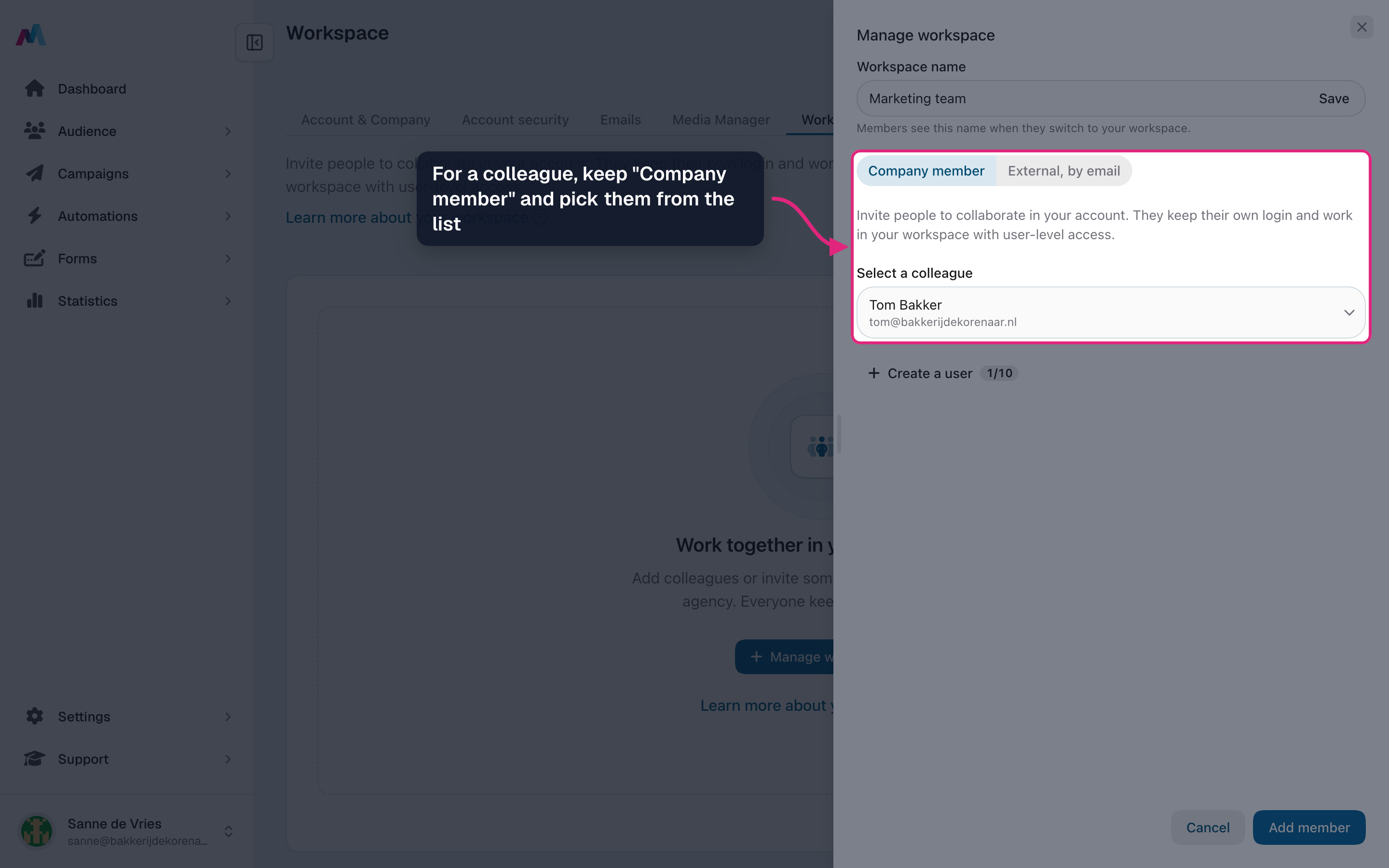
For someone from your own company, keep "Company member" selected and pick them under "Select a colleague". They must already exist as a user under Administrator, users; if they are not listed, click "Create a user" first.
-
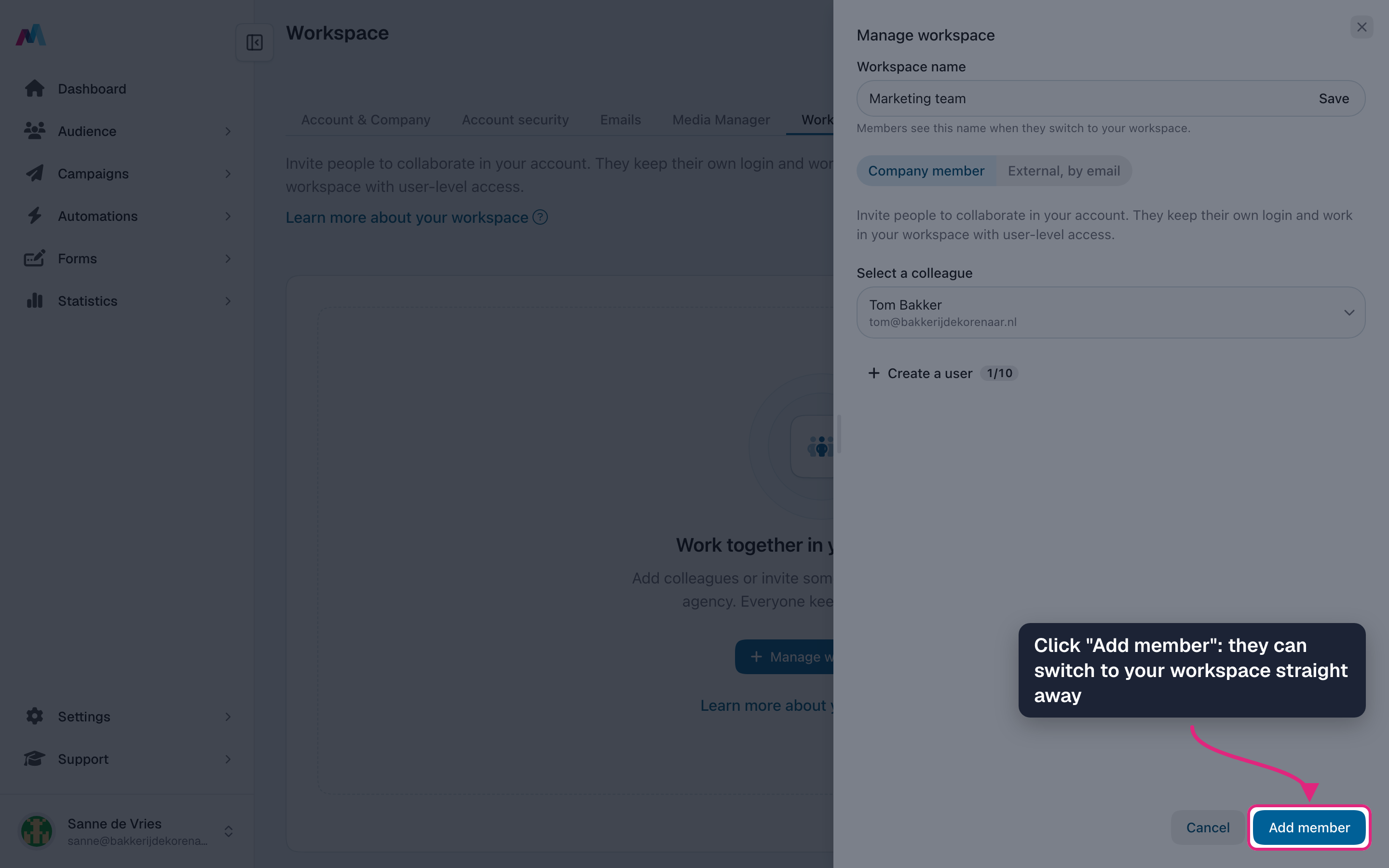
Click "Add member". Your colleague is added straight away and can switch to your workspace from the user menu.
-
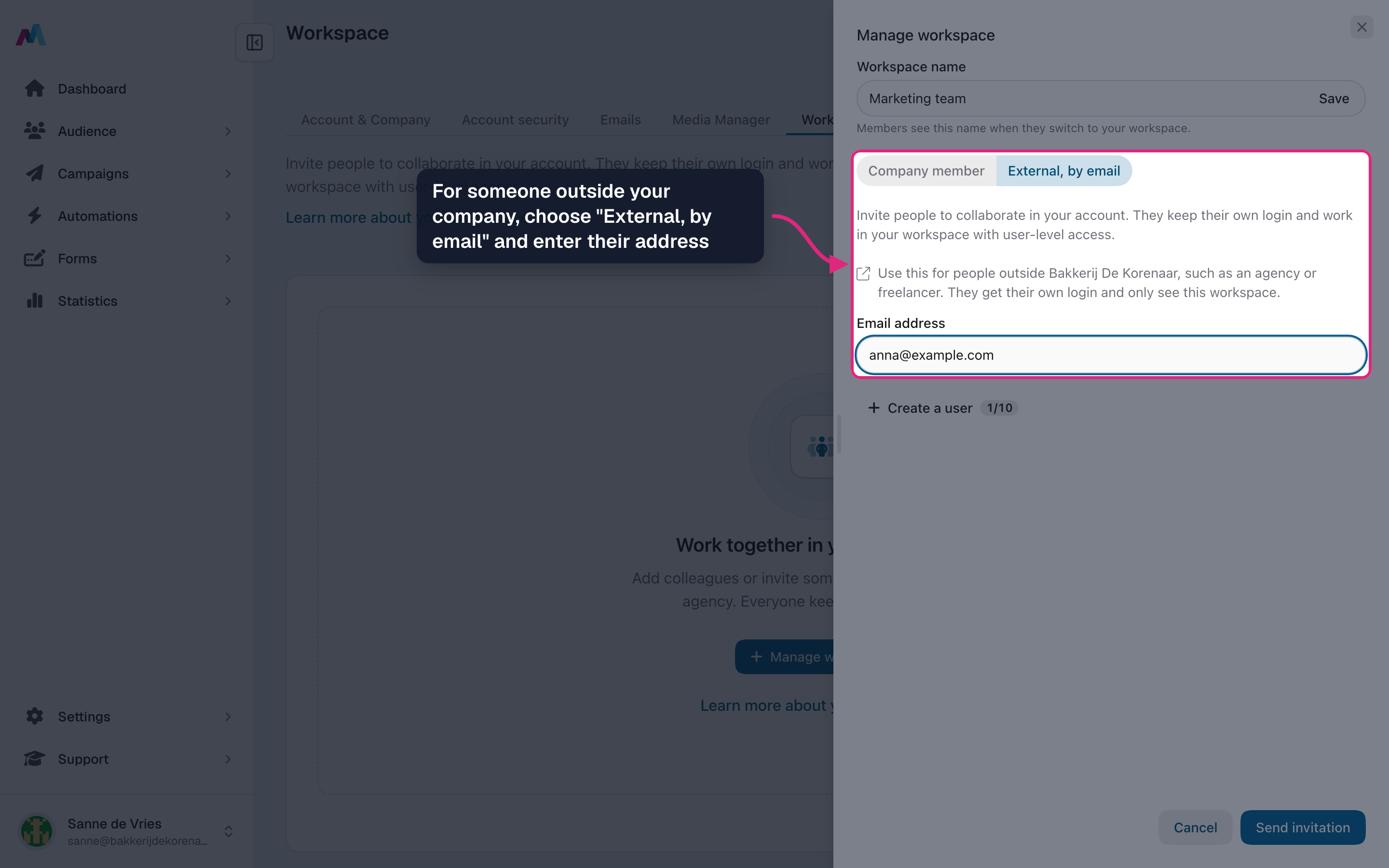
For someone outside your company, such as an agency or freelancer, choose "External, by email" and enter their email address.
-
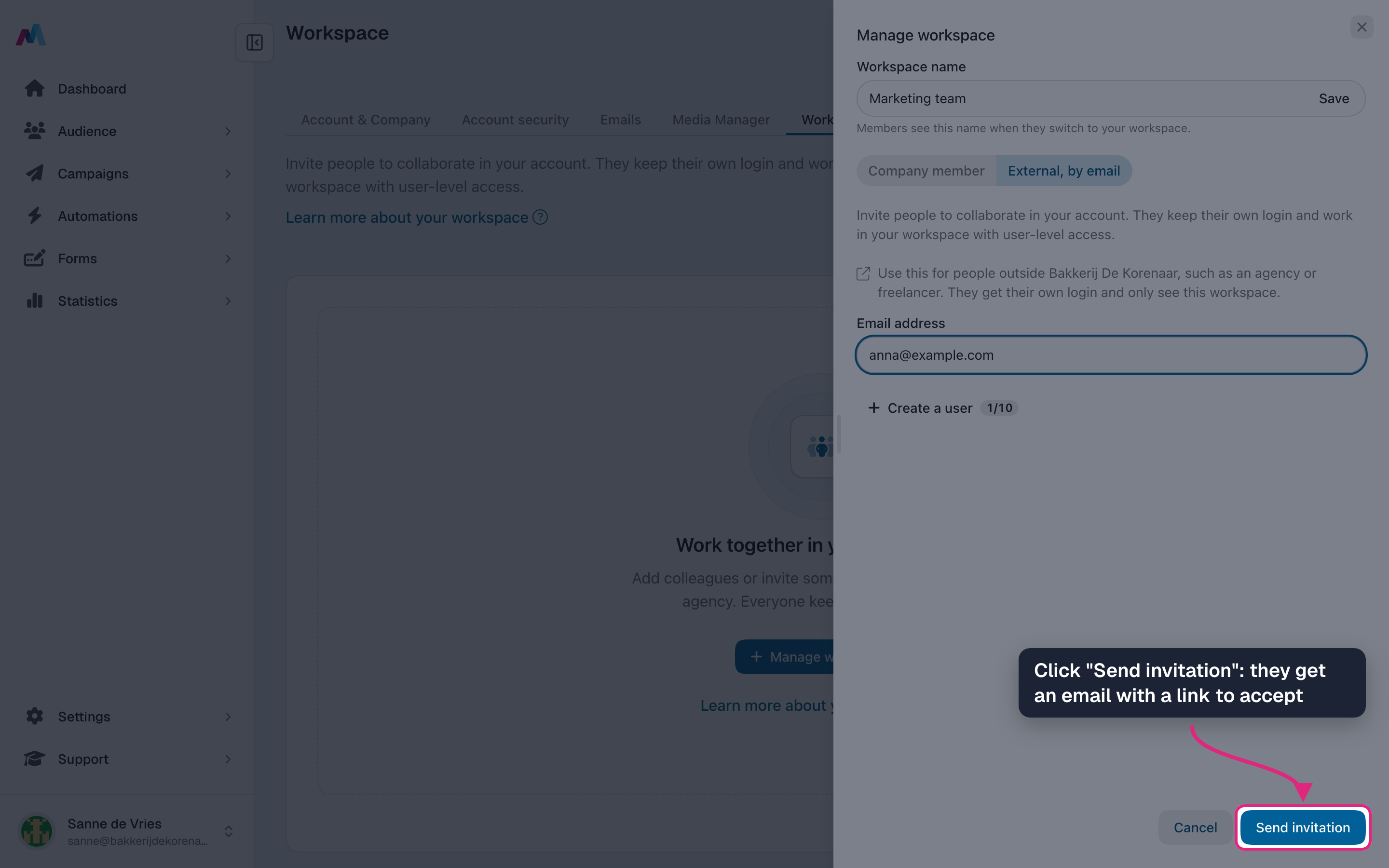
Click "Send invitation". They receive an email with a link to accept the invitation.
-
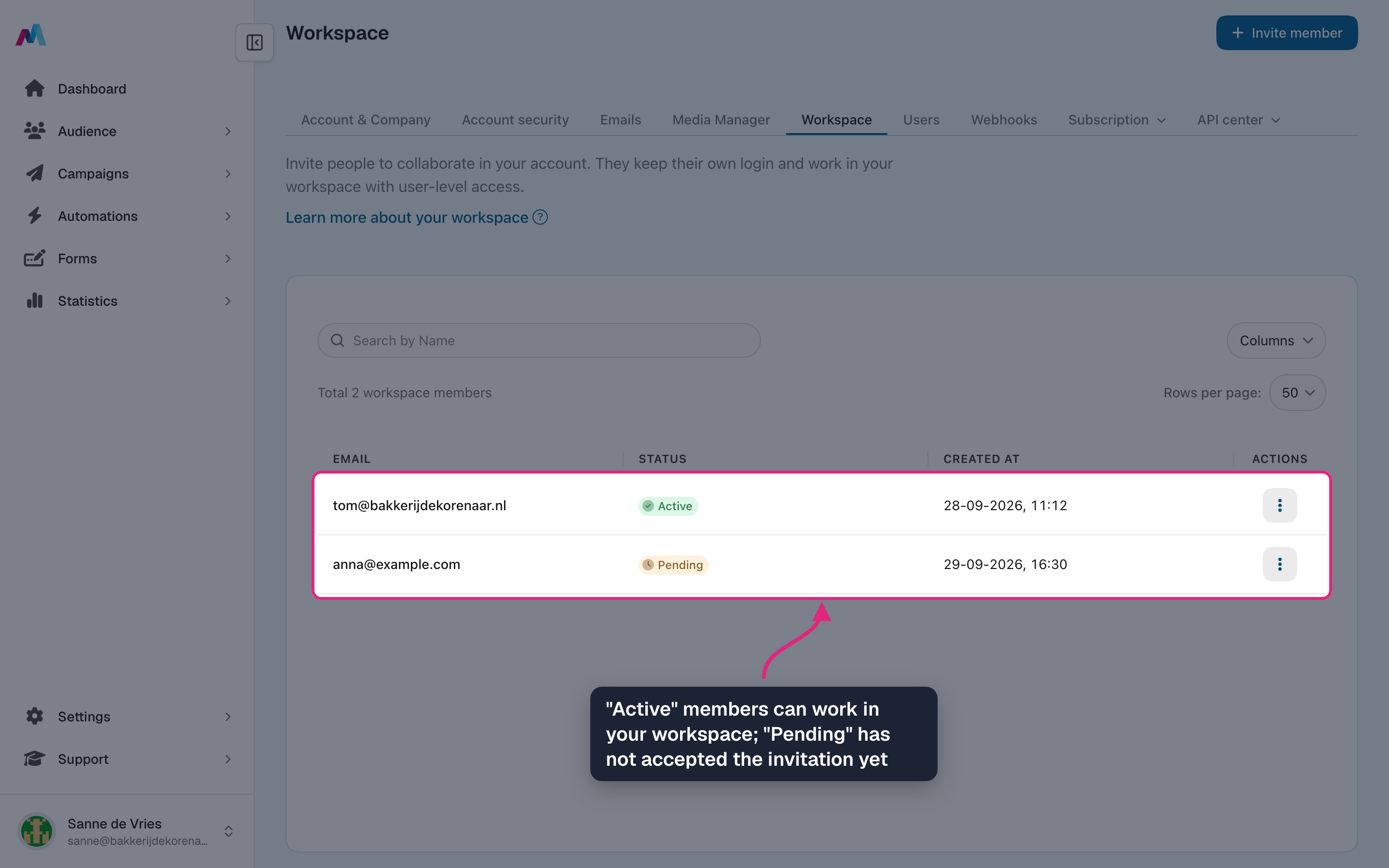
Everyone you added is listed on the Workspace page. "Active" means the person can work in your workspace; "Pending" means the invitation has not been accepted yet.
-
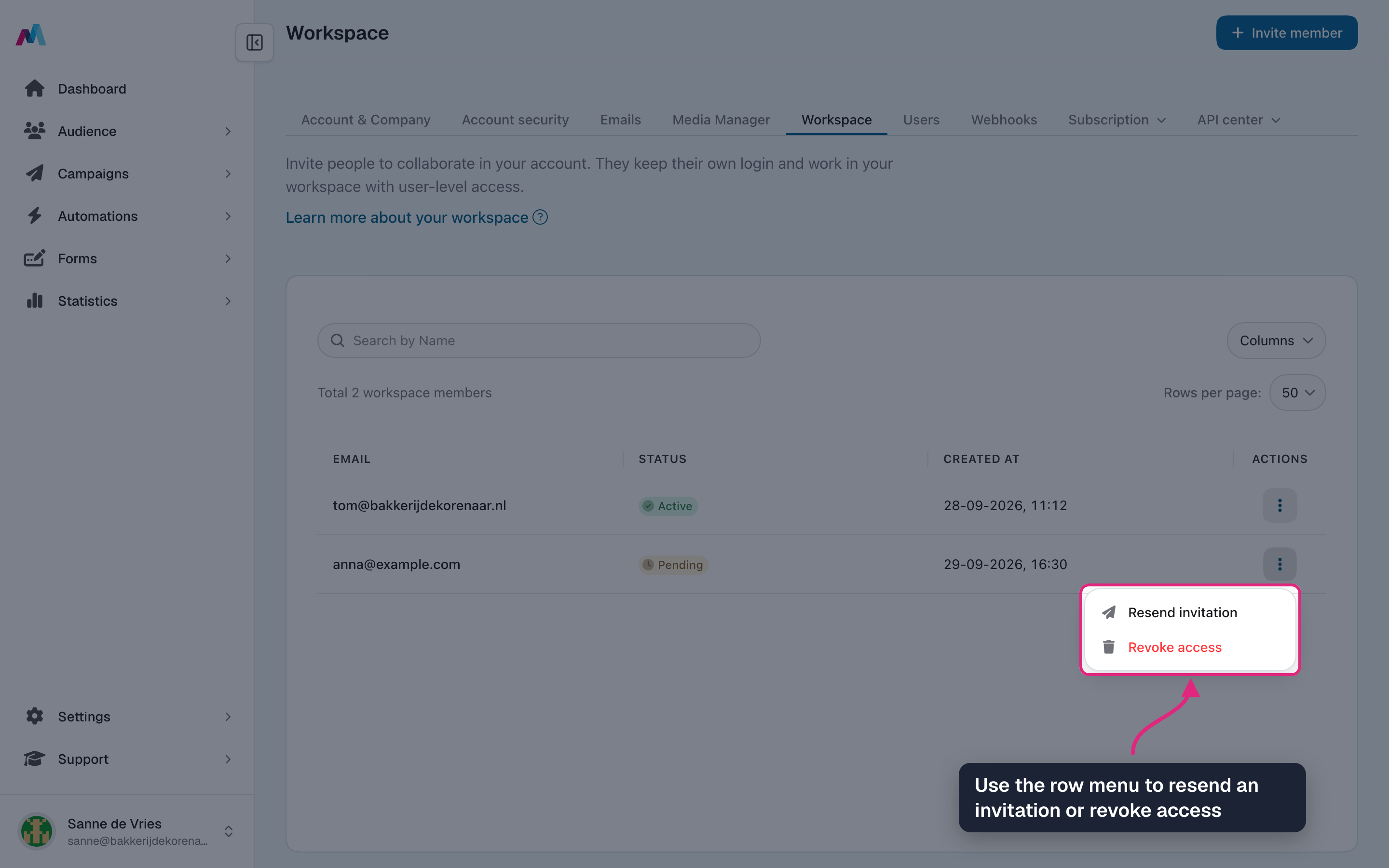
Open the menu at the end of a row to resend a pending invitation or to revoke someone's access.
Company member or external?A company member takes up a seat in your subscription and can also be given a role under users. An external member is added straight away, takes no seat and only sees this workspace. Use company members for your own team and external invitations for everyone else.
What do "Pending" and "Active" mean?
Pending means the invitation e-mail was sent but not accepted yet; you can resend it from the row menu. Active means the person can switch to your workspace.
How do I remove someone?
Choose "Revoke access" in the row menu. The person loses access to your workspace immediately; their own account is not affected.
The invitation e-mail was sent to the wrong address
Revoke the pending invitation and send a new one. An invitation can only be accepted while signed in with the exact address it was sent to.
Related
Updated 12 days ago