
Importing contacts
Add a batch of contacts from a CSV file. Upload, map fields, then review before saving.
Add a batch of contacts from a CSV file. Upload, map fields, then review before saving.
Import contacts step by step
-
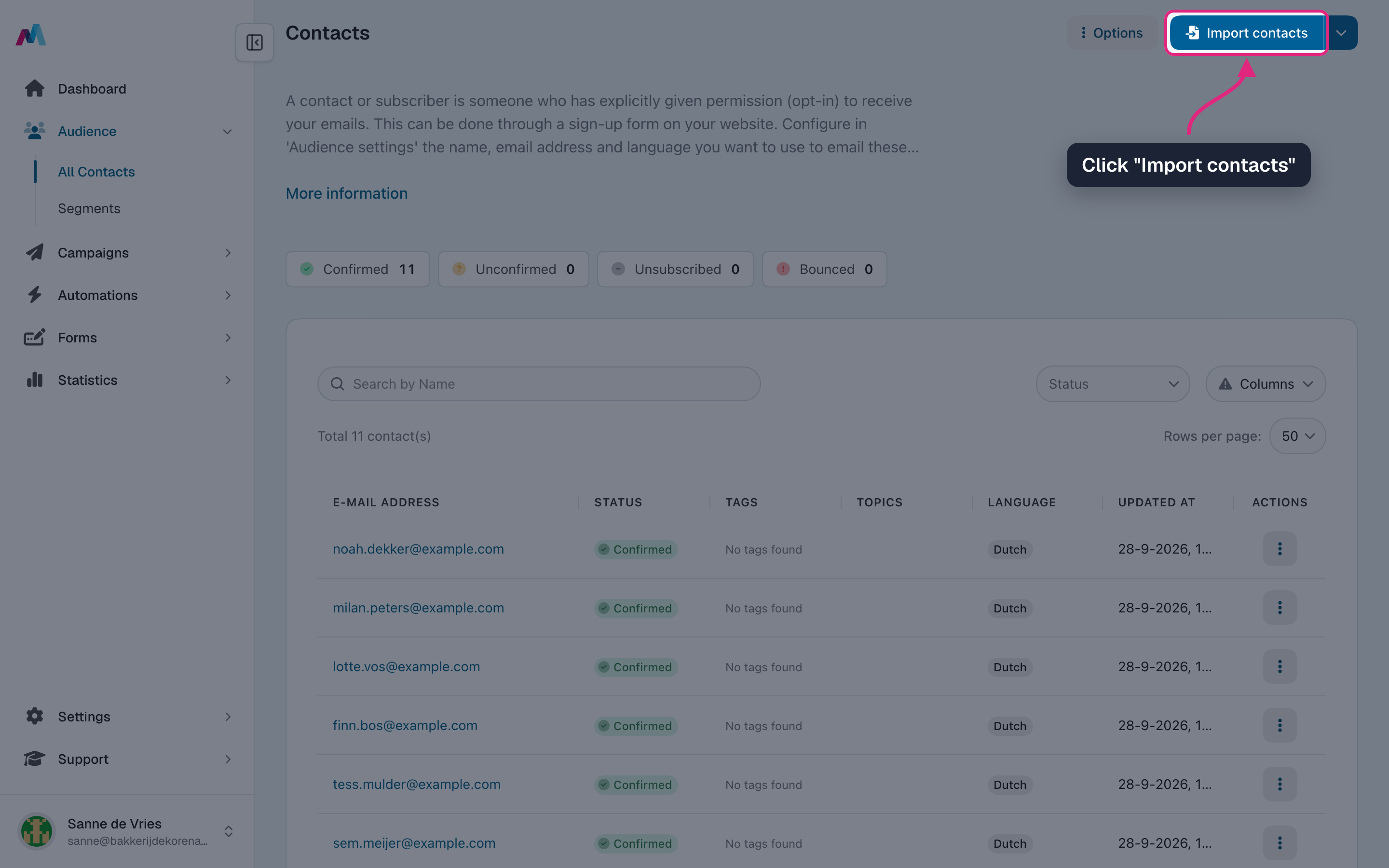
Go to Audience → All Contacts and click "Import contacts".
-
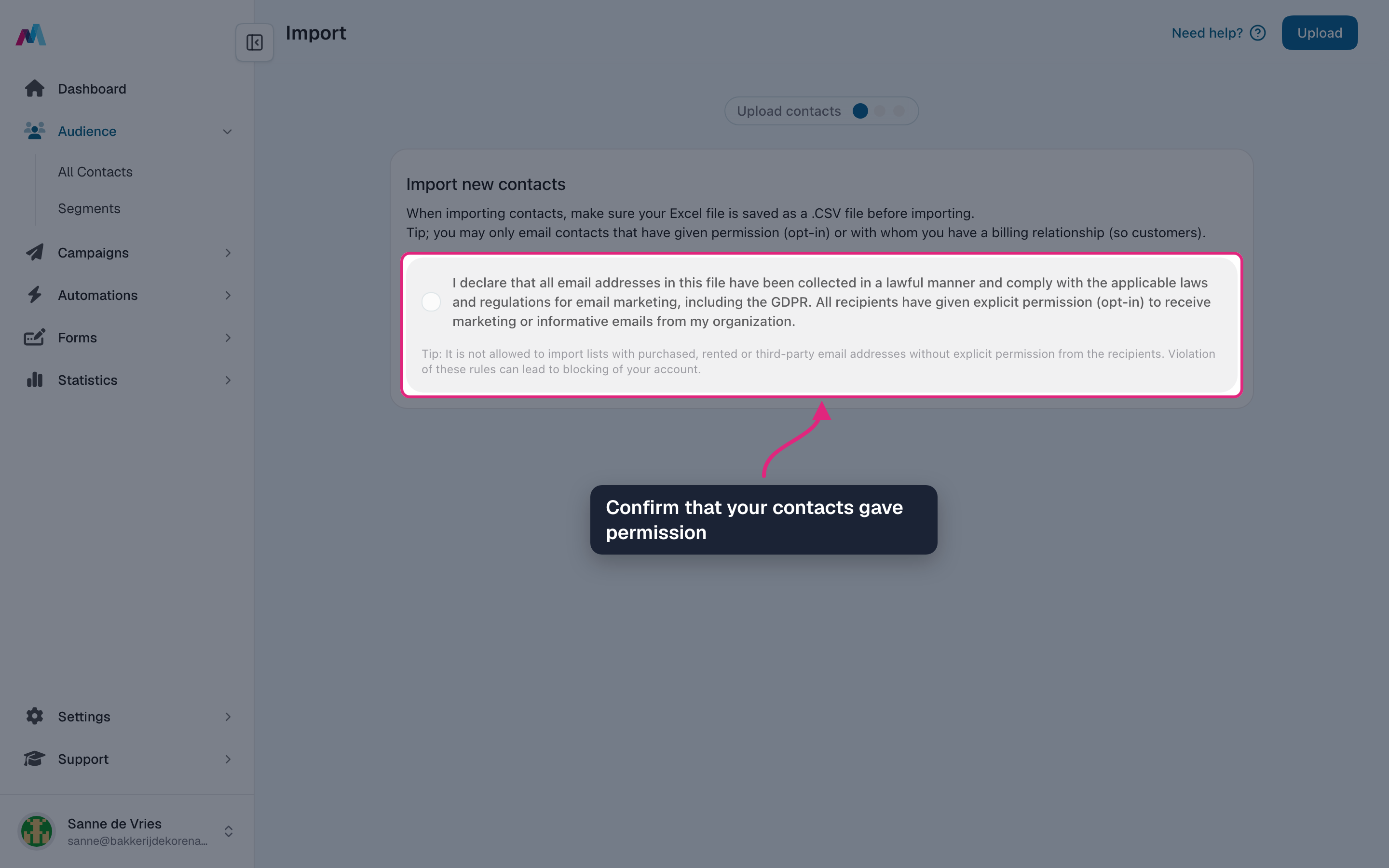
Confirm that everyone in the file gave permission to receive your emails.
-
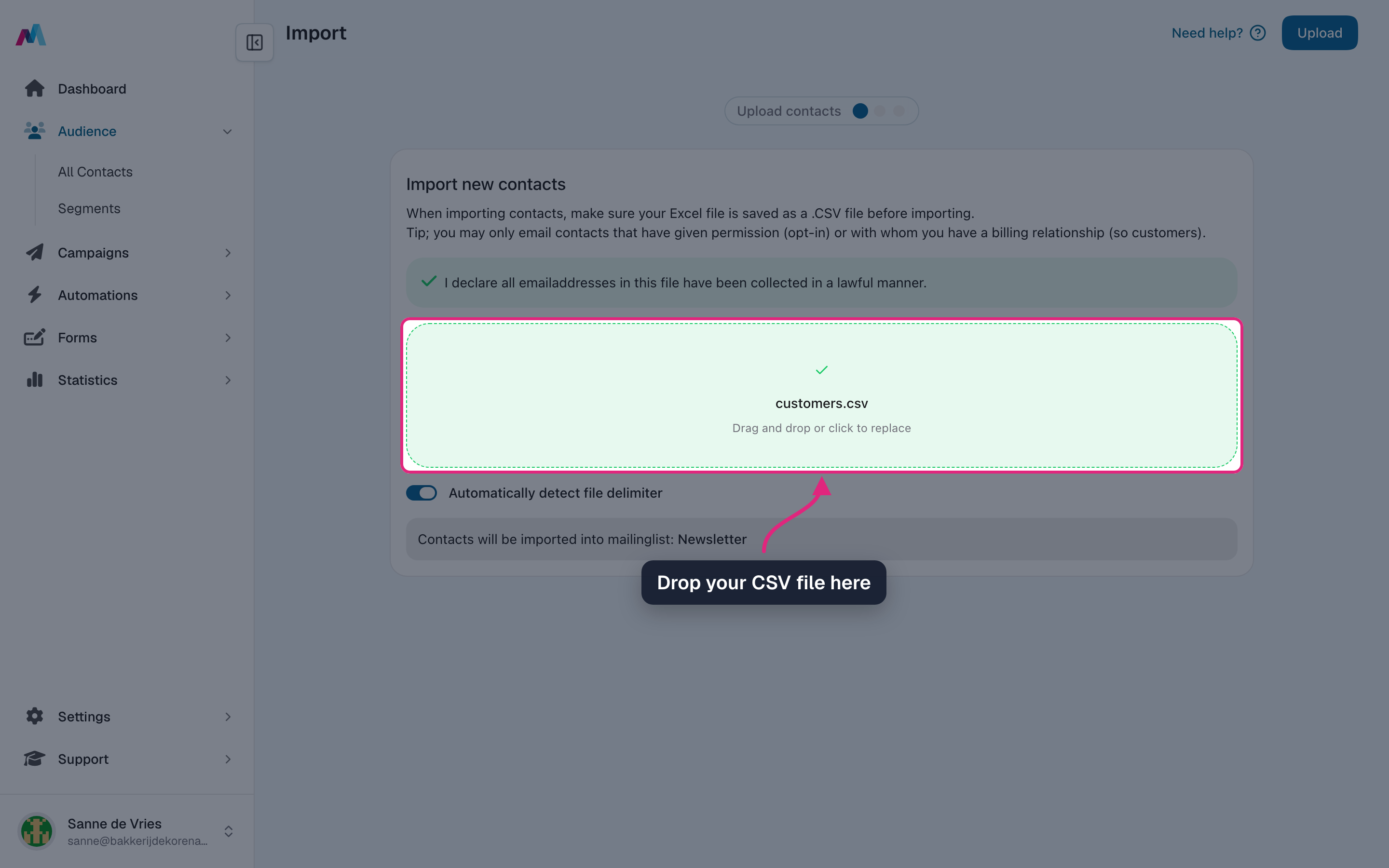
Drop your CSV file in the upload area, or click it to choose the file. Save a spreadsheet as "CSV UTF-8" first, with column names in the first row.
-
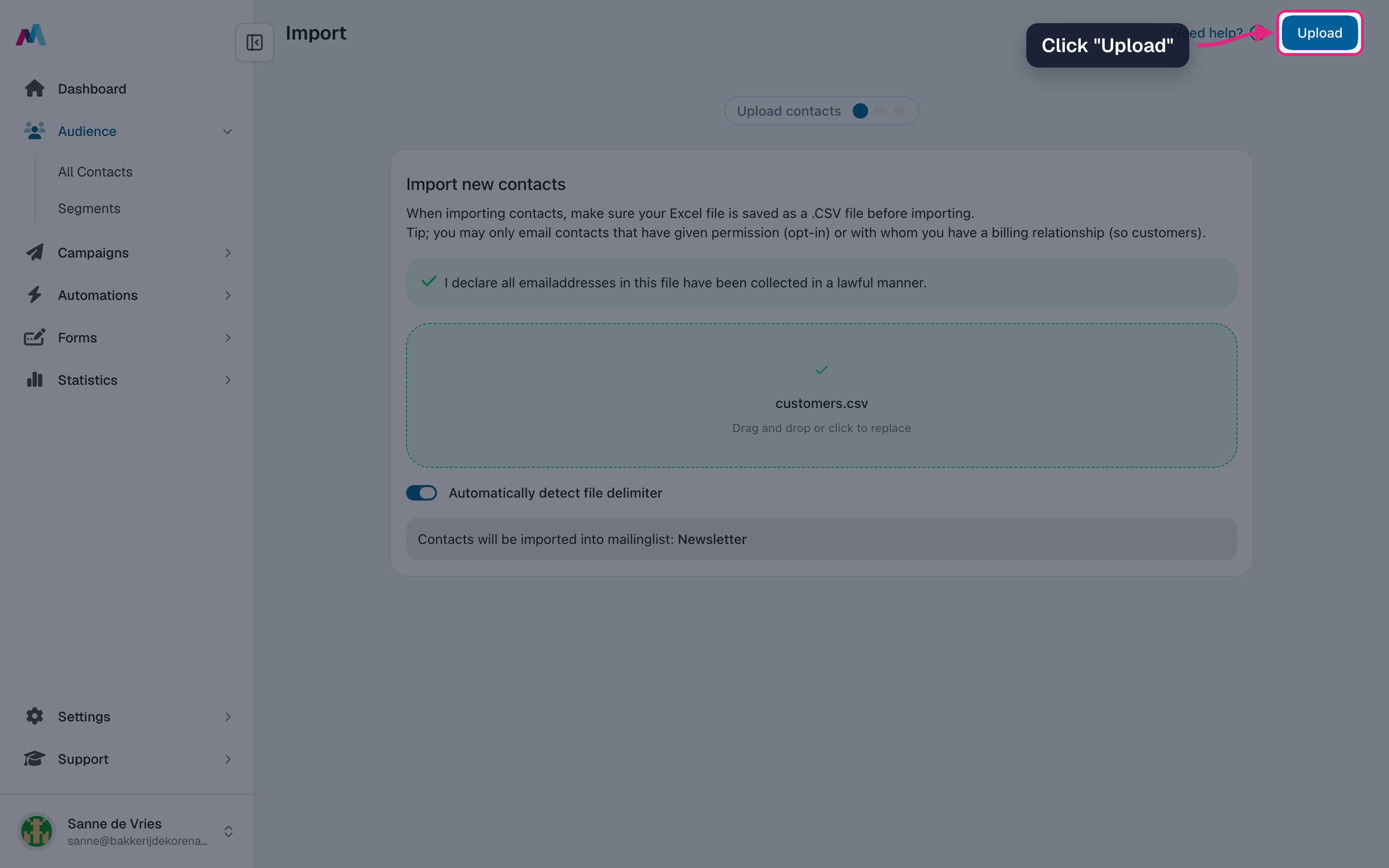
Click "Upload".
-
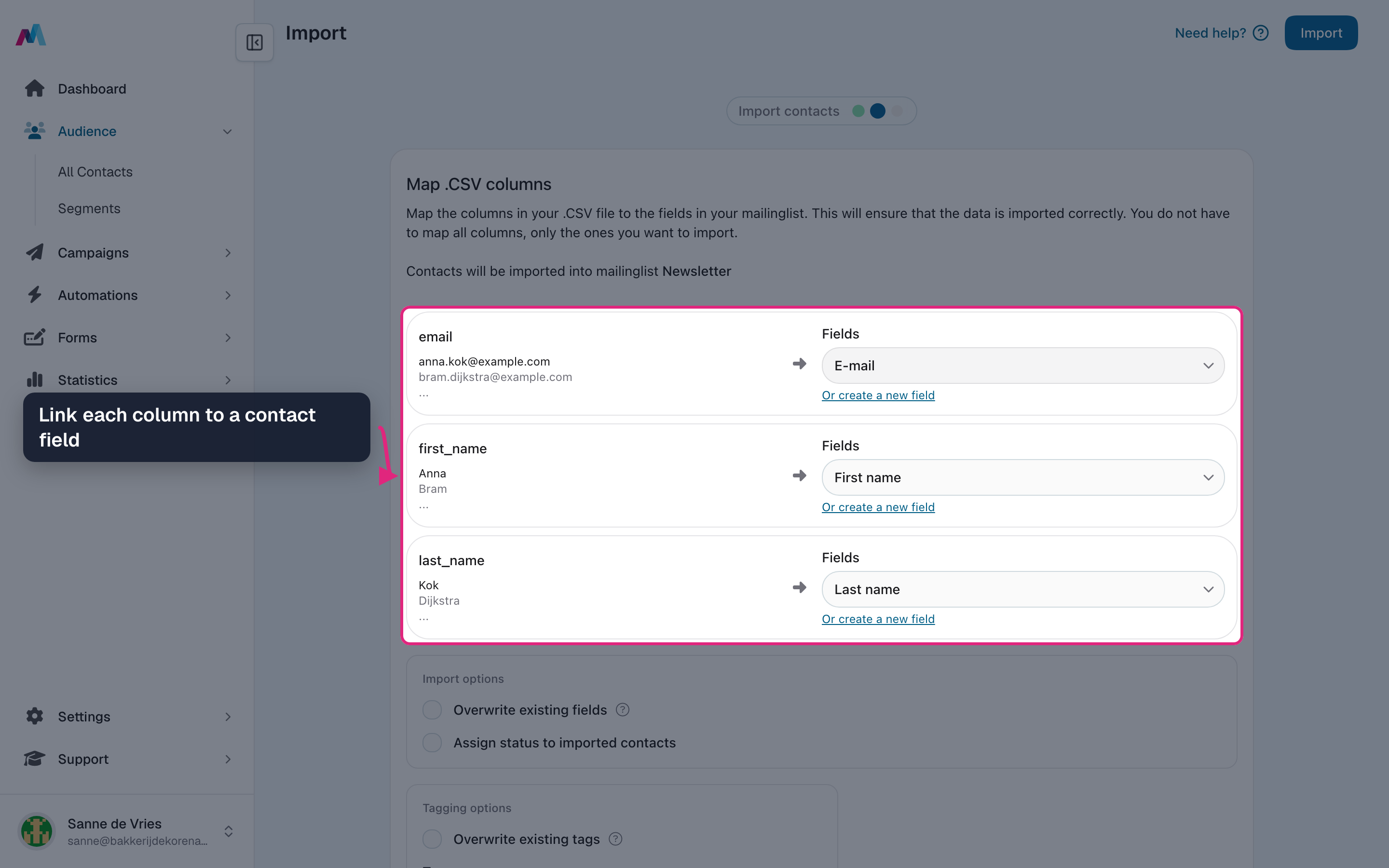
Link each column to a contact field. The email column is linked for you; columns you leave empty are not imported.
-
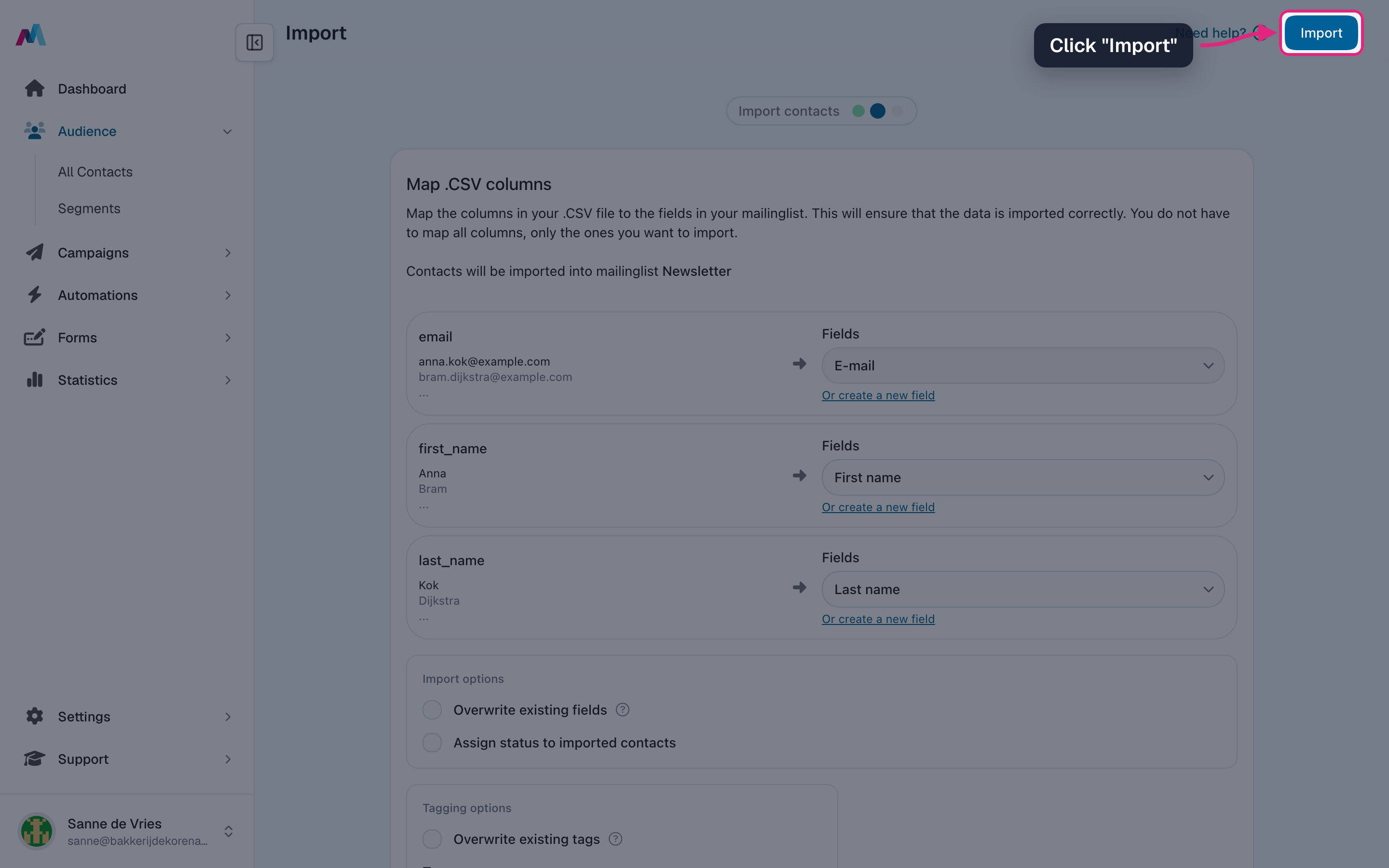
Optionally choose import, tag and interest options below the columns, then click "Import".
-
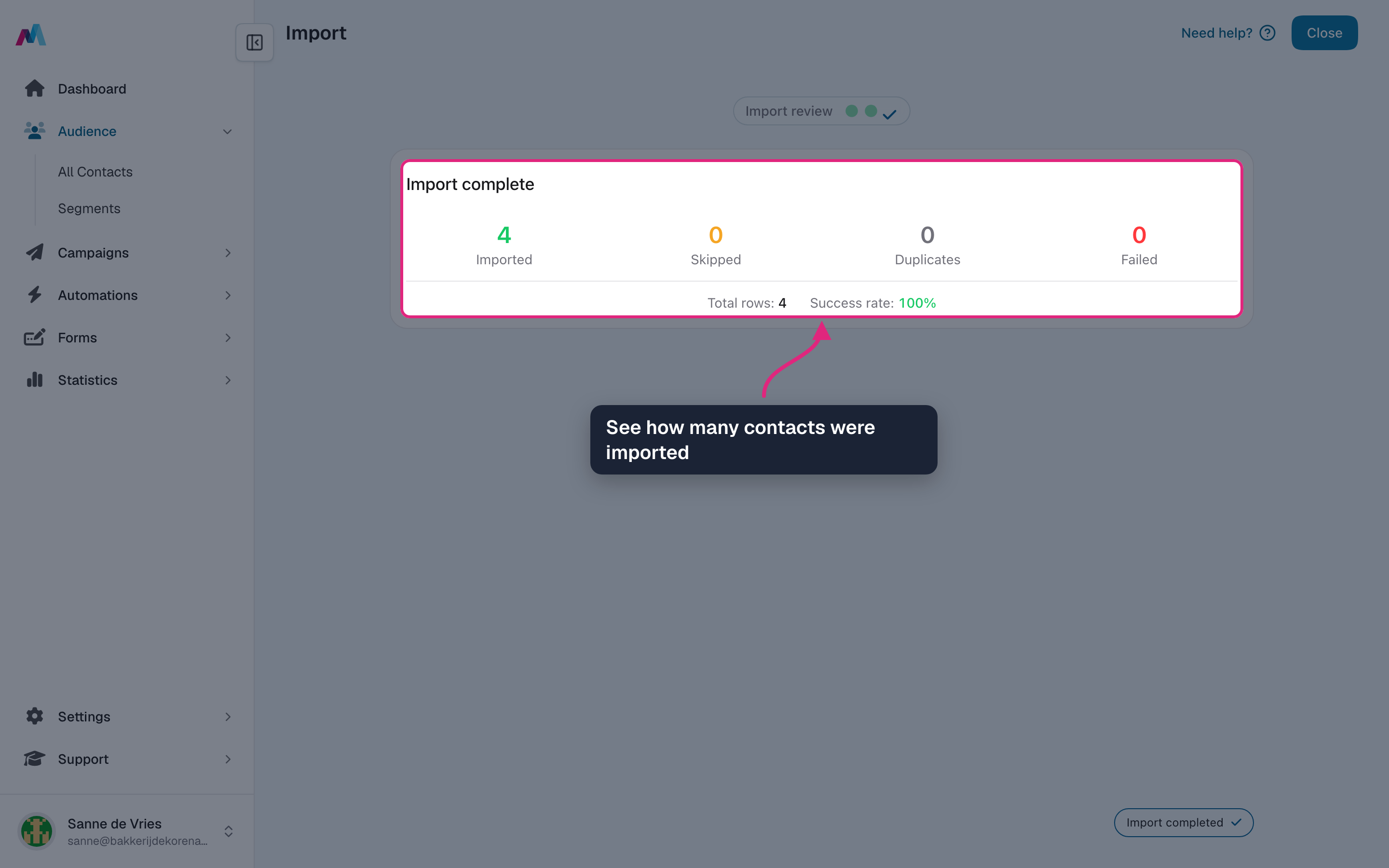
When the import is done you see how many contacts were imported, skipped, duplicated or failed.
Only import people who opted inPurchased or scraped lists damage your sender reputation, get flagged as spam, and may breach GDPR. Every imported contact must have given explicit permission.
Why didn't my CSV import?
Most often the email column was not mapped, or the file was not UTF-8 (special characters break parsing). Re-export from your spreadsheet as "CSV UTF-8" and try again.
What happens to duplicate emails?
Duplicates within the same mailing list are merged into the existing contact, with imported field values overwriting old ones. Re-importing the same CSV is safe.
Can I import from Mailchimp or another provider?
Yes — export your audience as CSV from the source tool and follow the wizard. Make sure the export only contains opted-in contacts.
Related
Updated 4 days ago