
What is a campaign
A campaign is any email you send to your contacts: a newsletter, promotion, invitation or announcement. This screen lists every campaign on the account and is where you build, test, schedule and send the next one.
A campaign is any email you send to your contacts: a newsletter, promotion, invitation or announcement. This screen lists every campaign on the account and is where you build, test, schedule and send the next one.
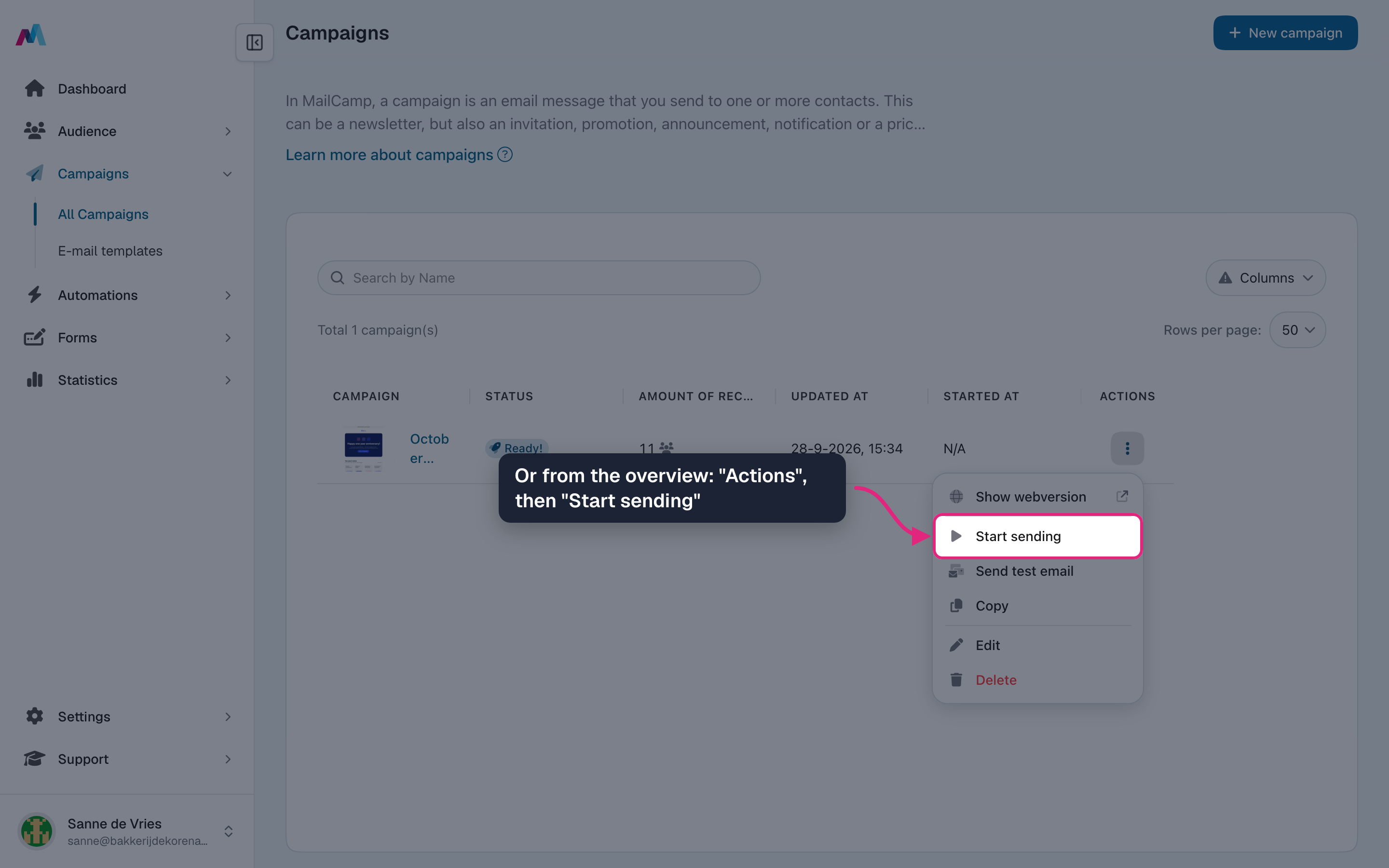
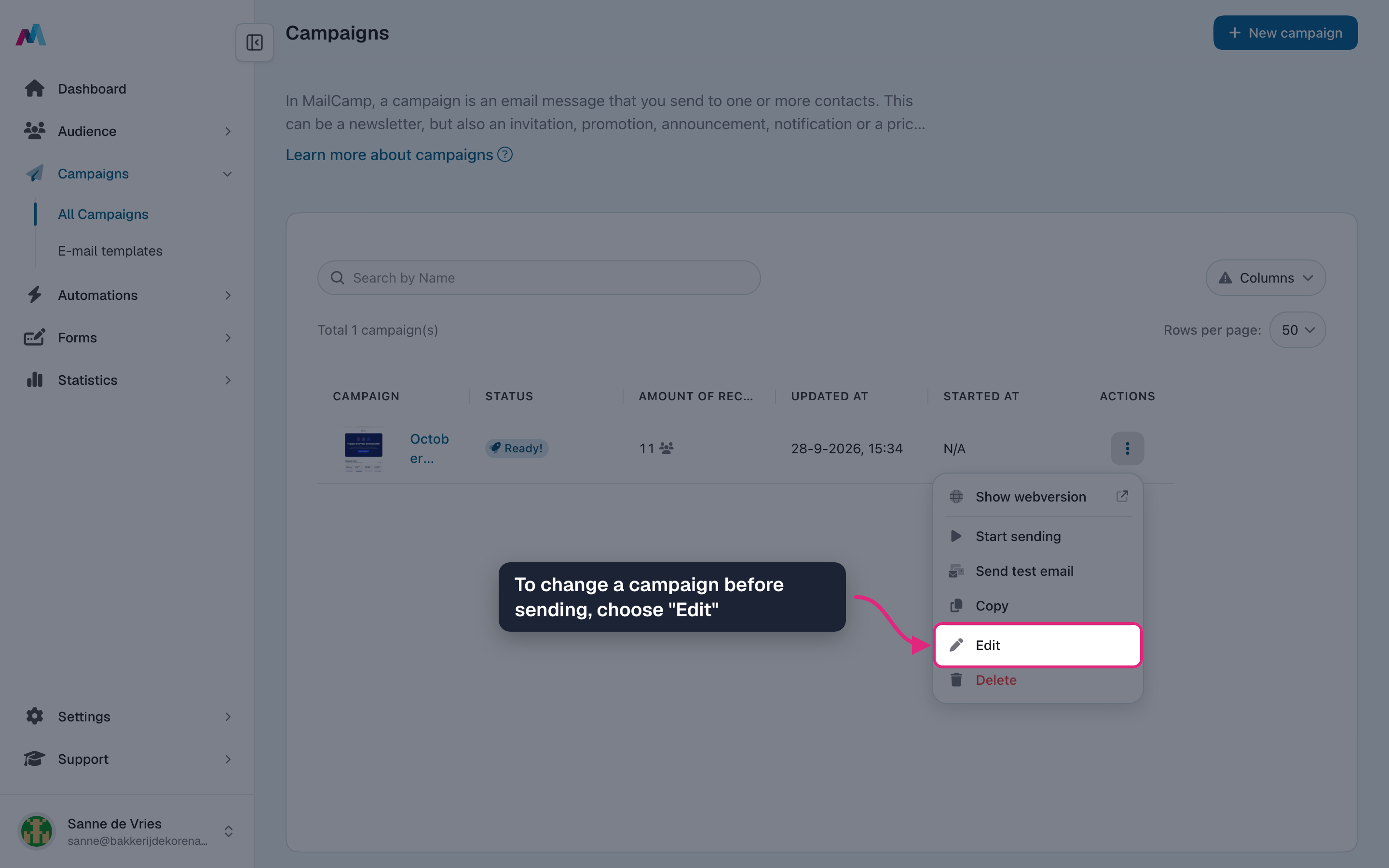
Each row in the overview is a campaign with its status, for example ready, scheduled, sending or sent. Scheduled campaigns also show the date and time they go out. The "Actions" menu of a row changes with the status: for a campaign that is ready you can view the web version, start sending, send a test email, copy, edit or delete it; a scheduled campaign shows "Manage schedule" instead of "Start sending".
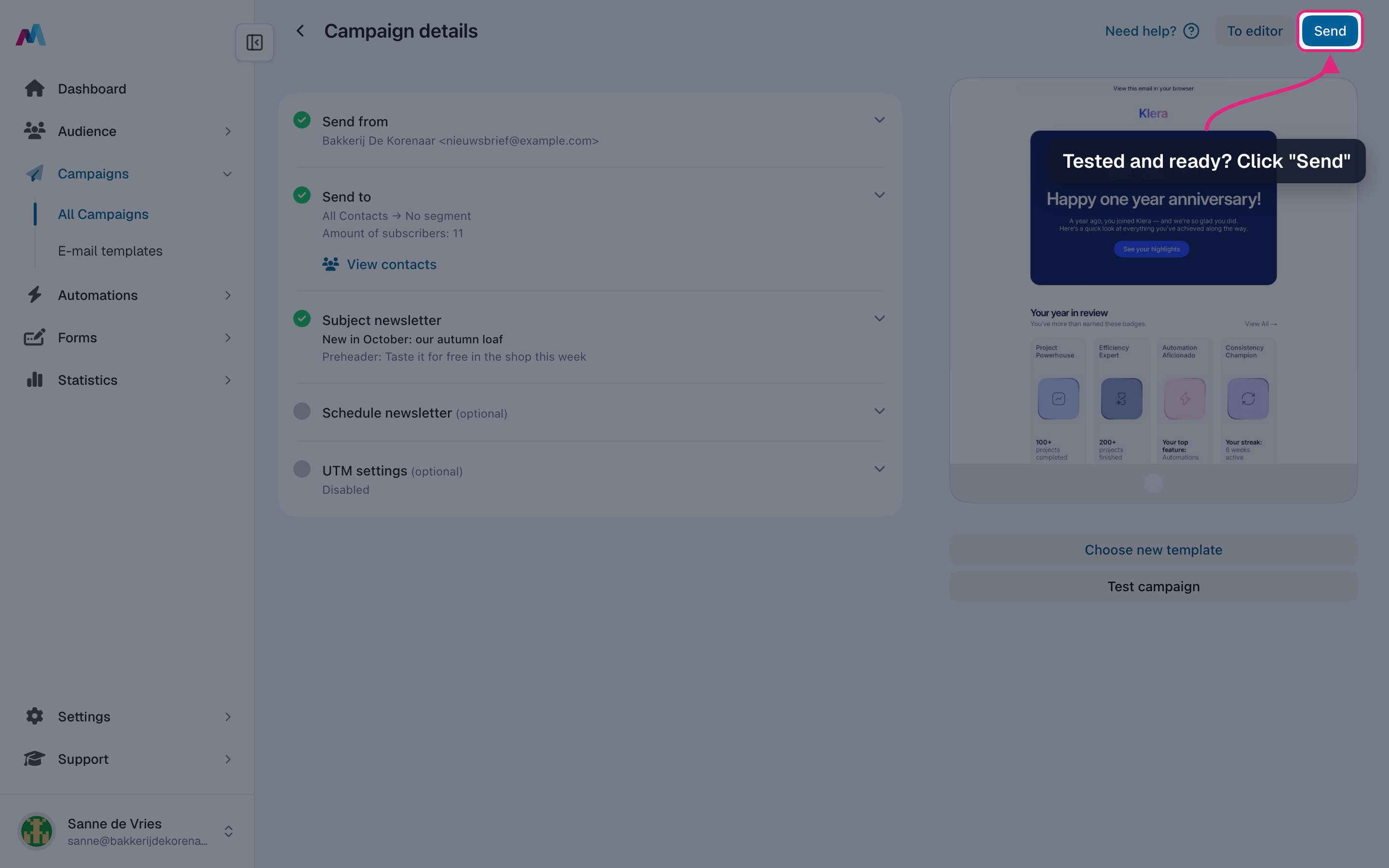
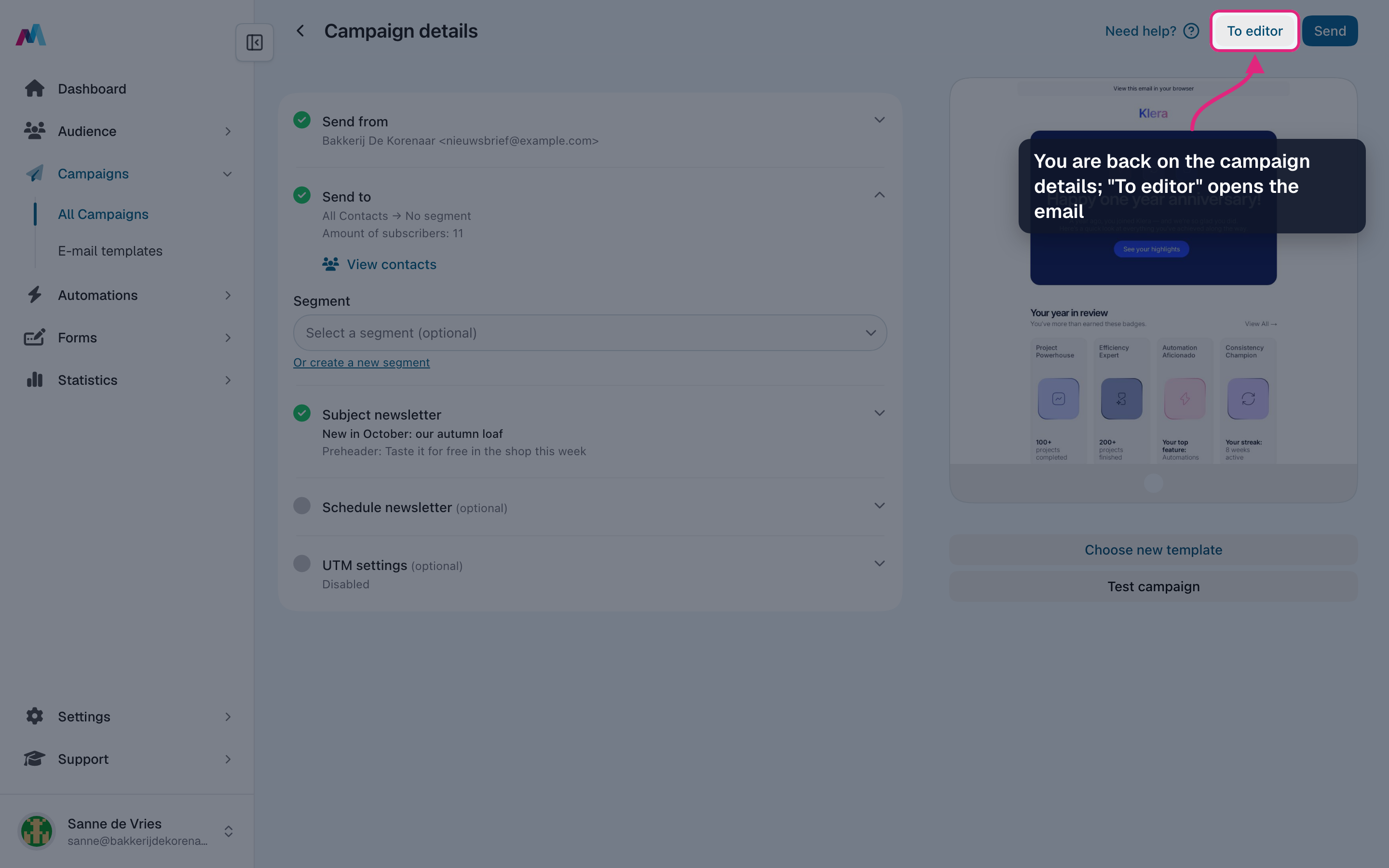
A campaign has a few parts: a sender (name, address and reply address), an audience (your list, optionally narrowed by a segment), a subject and preheader, a design, and optionally a moment to send it. You set all of them on the campaign details screen; the design opens in the editor. "Send" appears at the top once every required section has a green check.
Building a campaign end-to-end
-
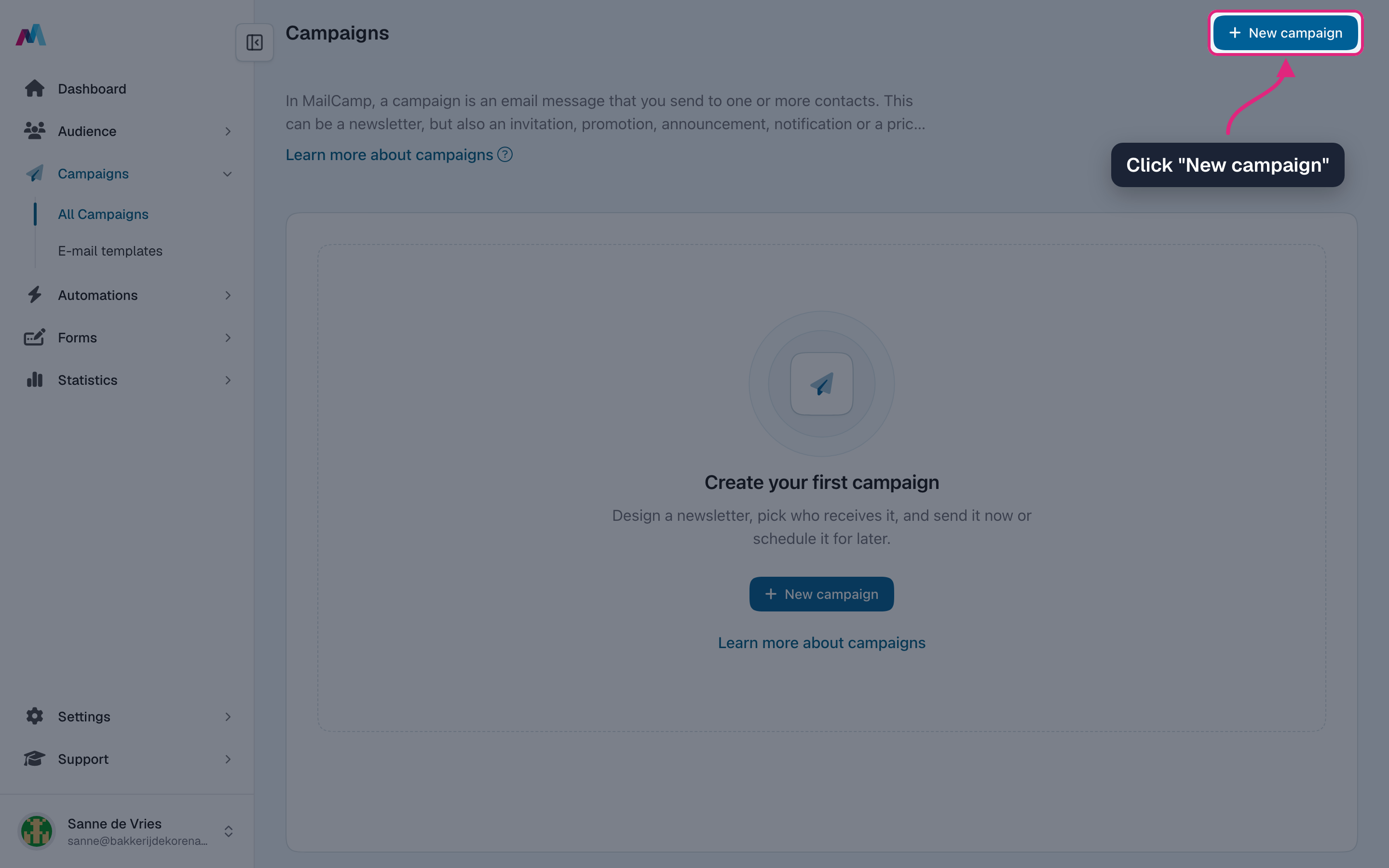
Go to Campaigns and click "New campaign".
-
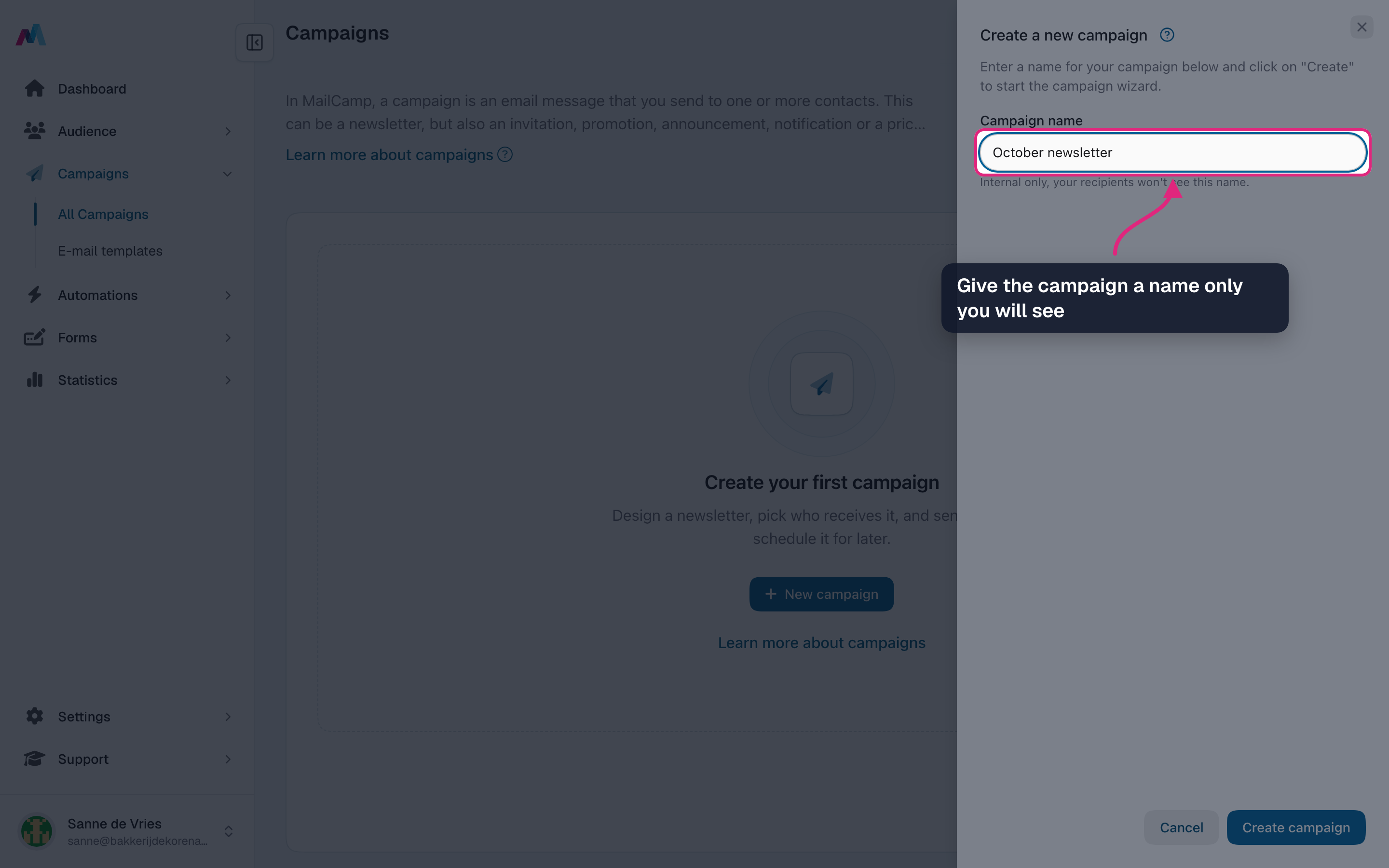
Give the campaign a name. Only you see it, so pick one that helps you find it back later.
-
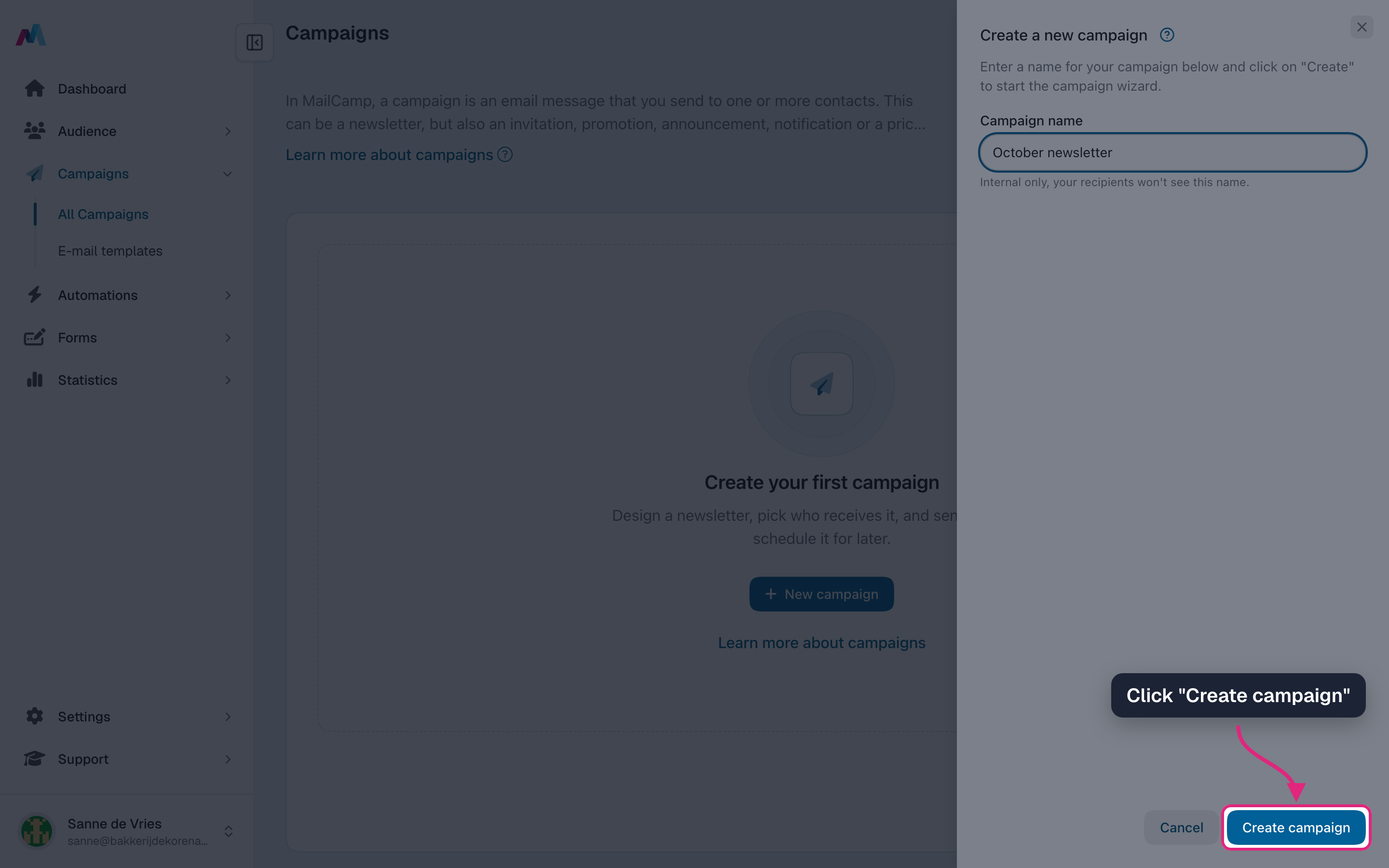
Click "Create campaign". The campaign details screen opens.
-
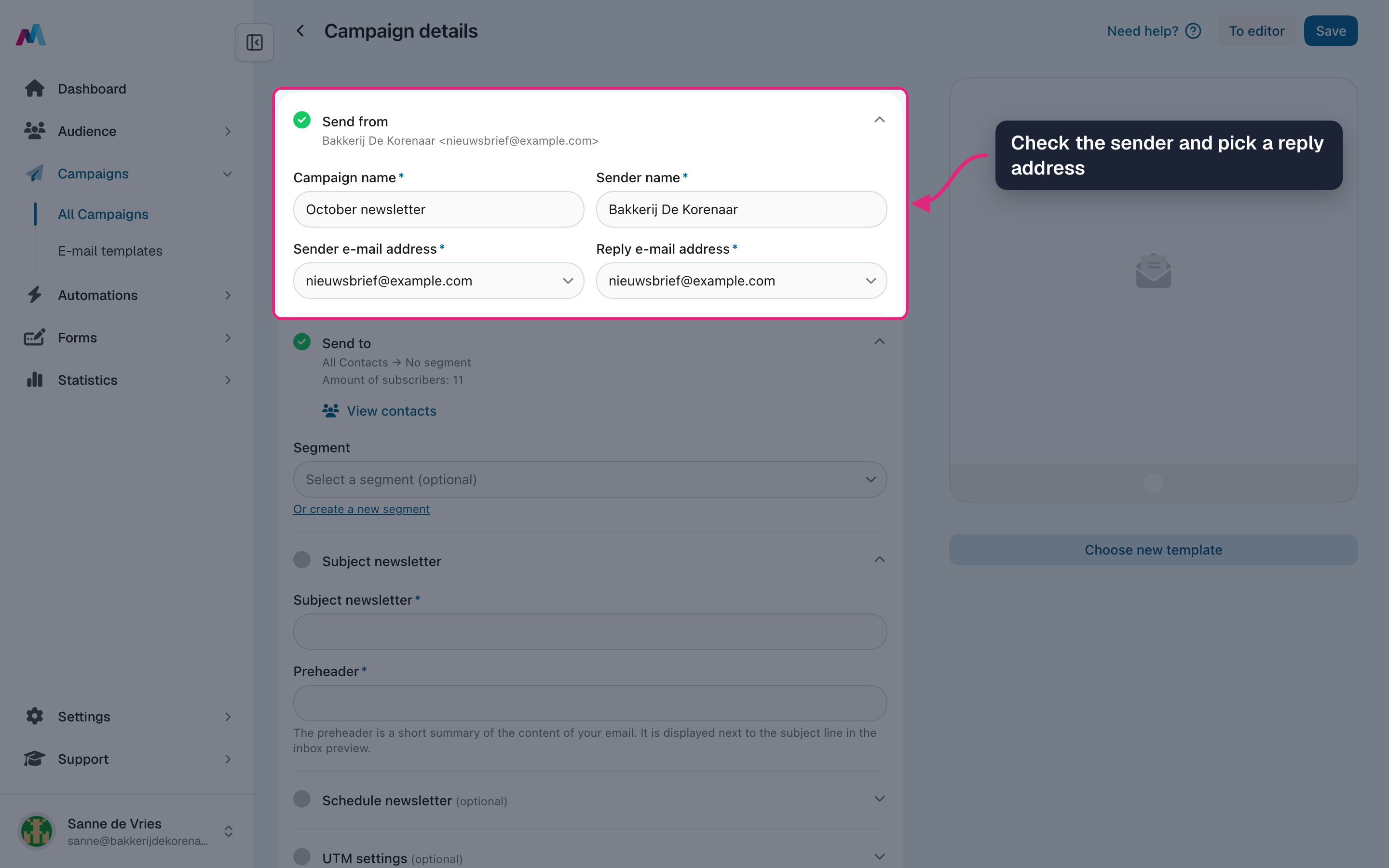
Under "Send from", check the sender name and address, and pick the address replies should go to.
-
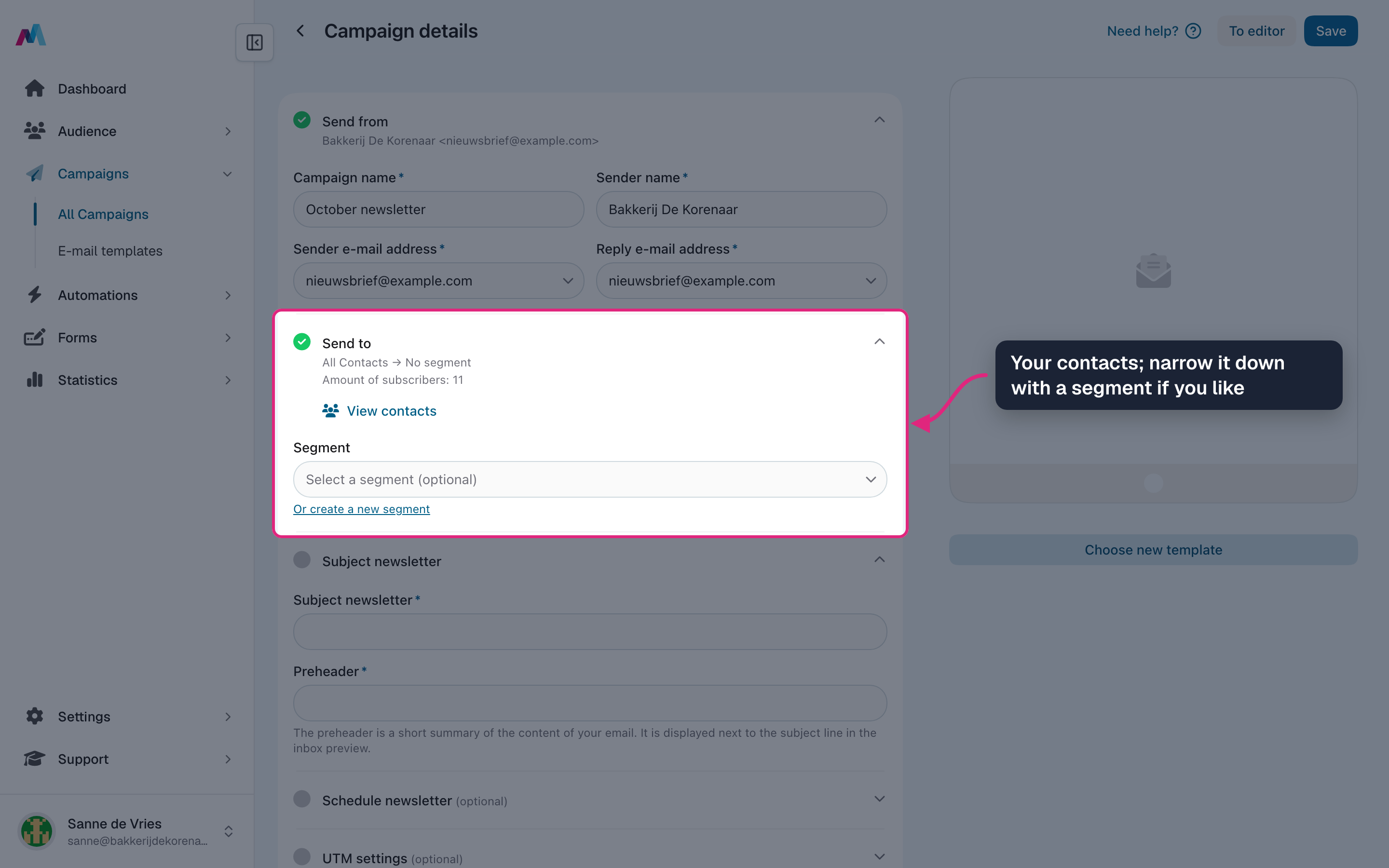
Under "Send to" you see how many contacts will receive it. Pick a segment if you only want to reach part of them.
-
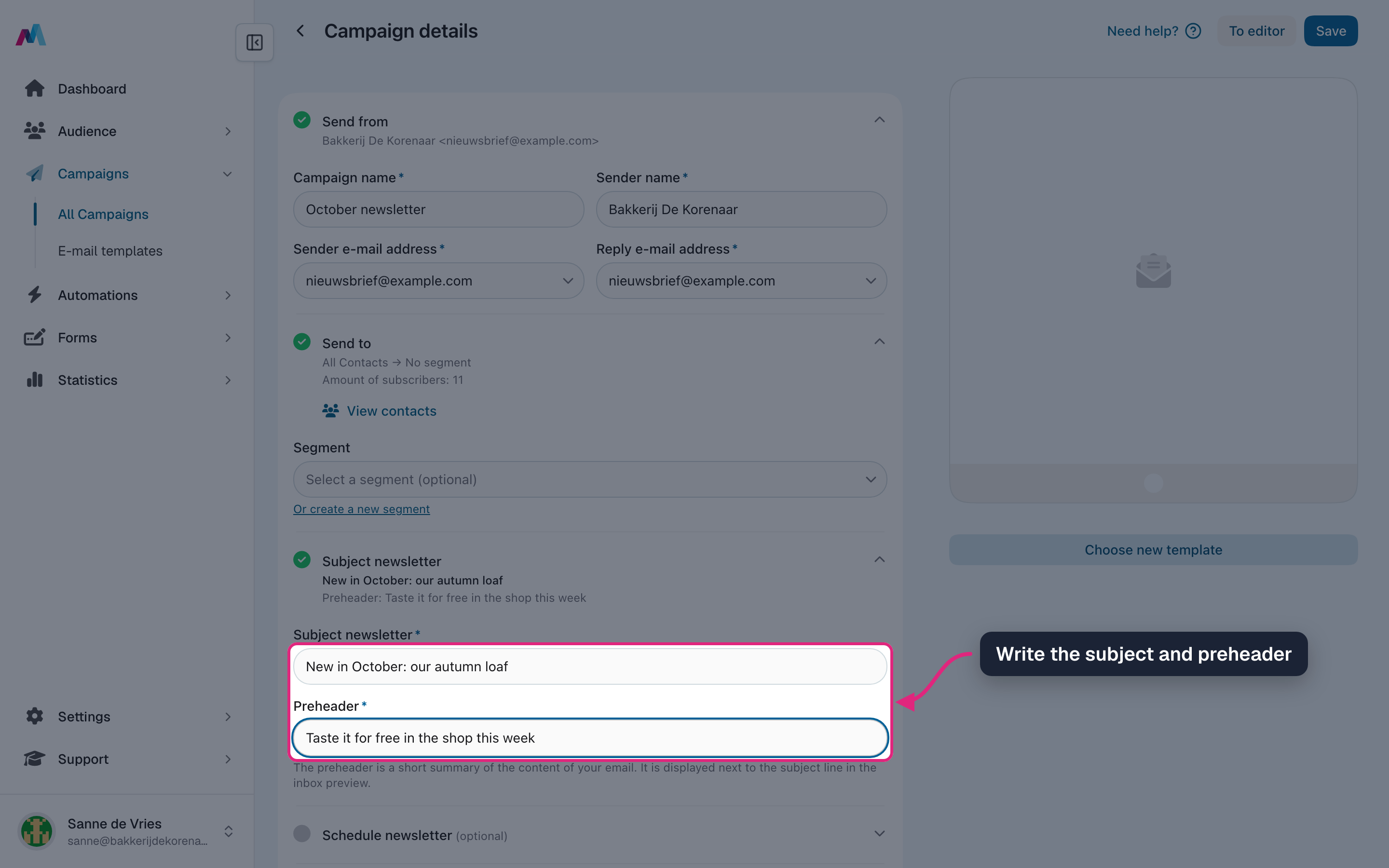
Write the subject and the preheader, the short line people see next to the subject in their inbox.
-
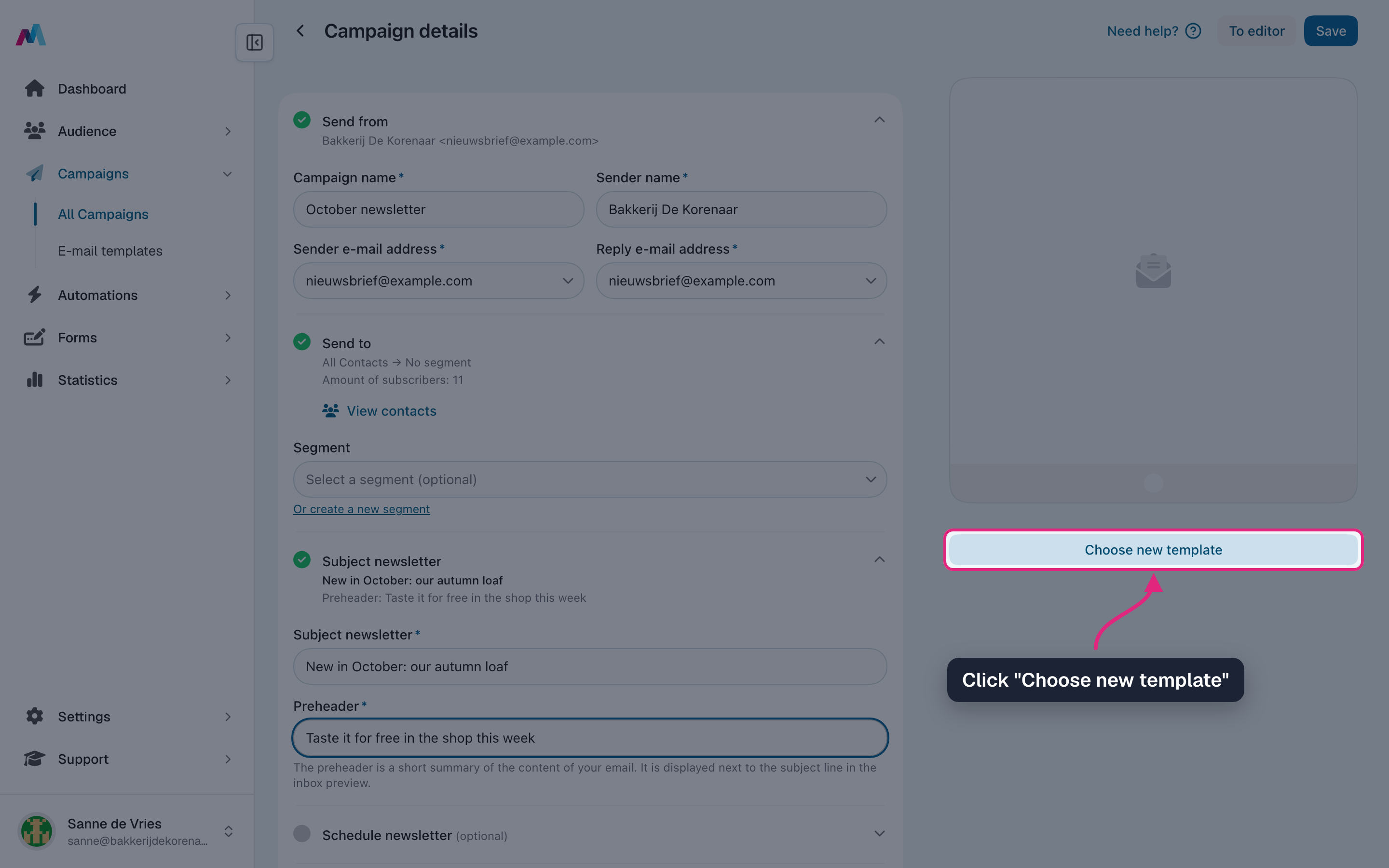
Click "Choose new template" to design the email.
-
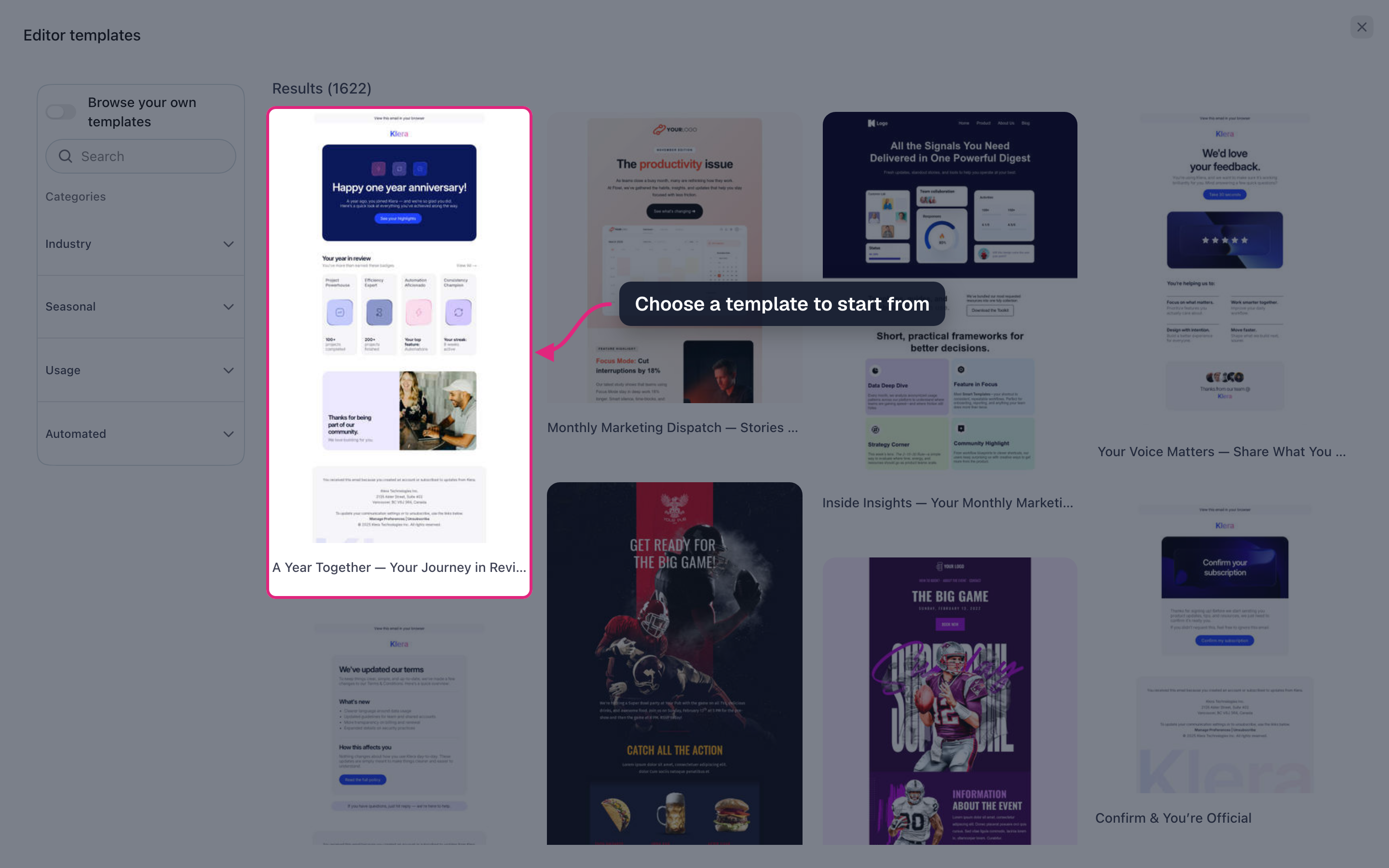
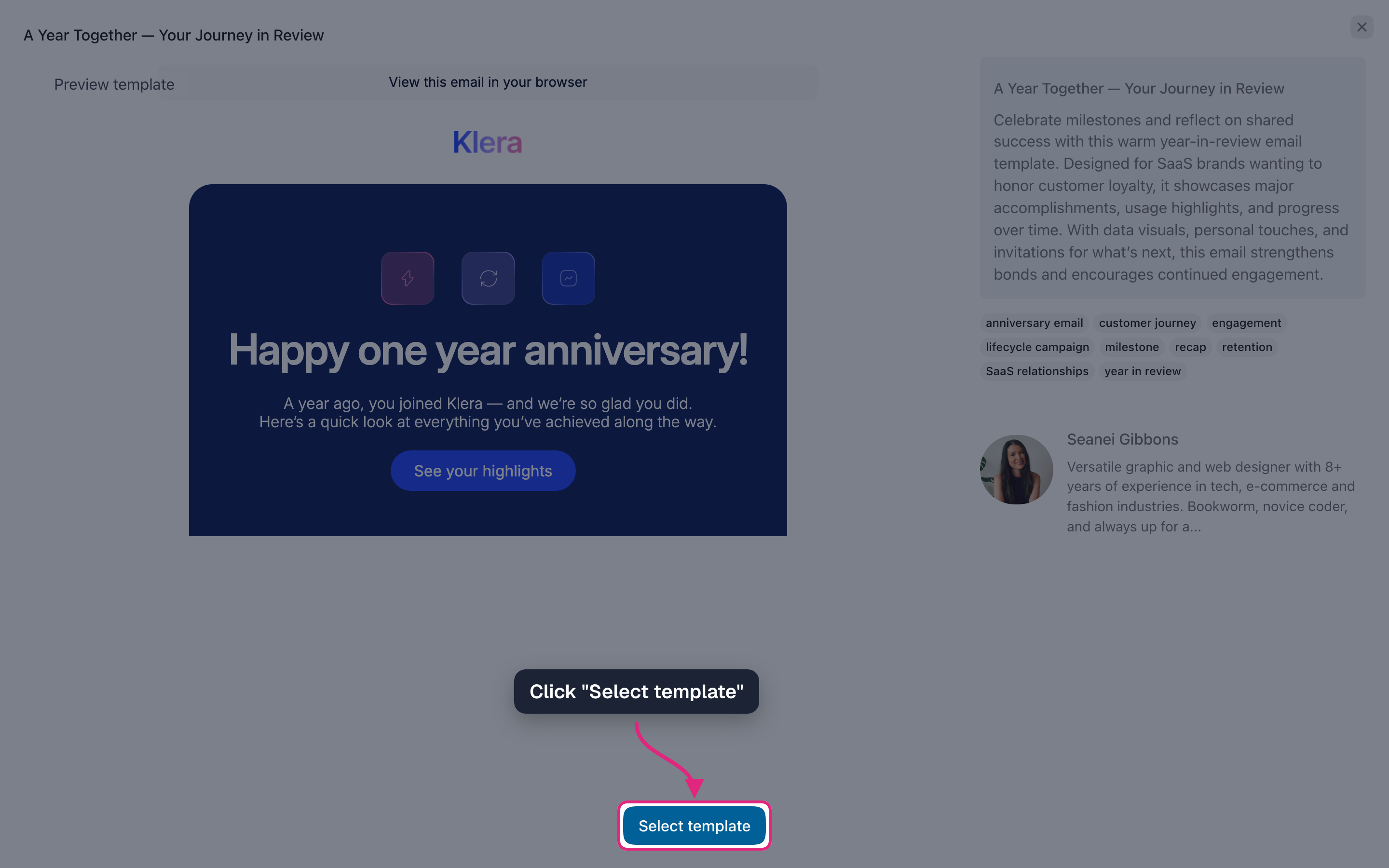
Pick a template to start from.
-
Click "Select template".
-
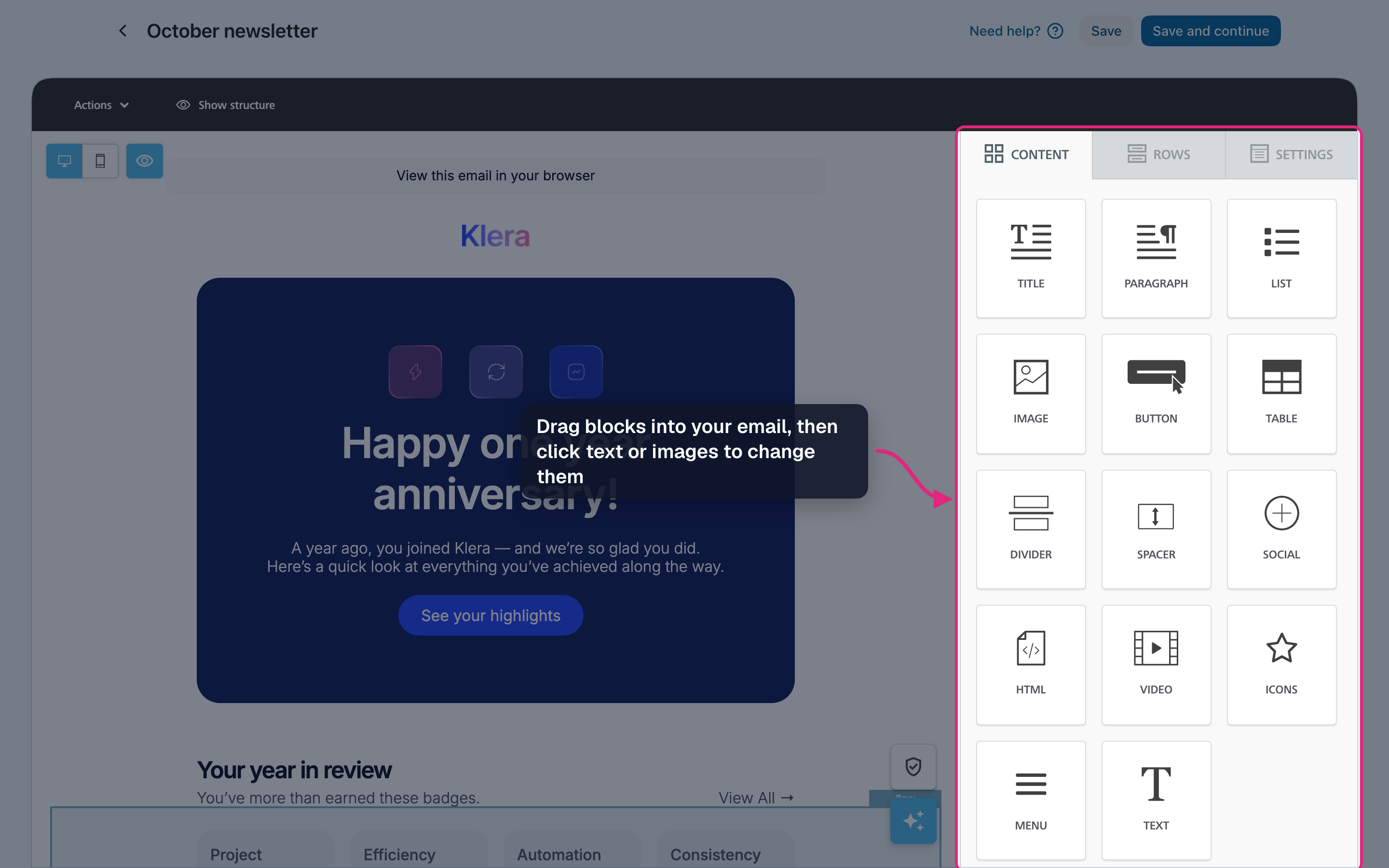
The editor opens. Drag blocks into your email, and click text or images to change them.
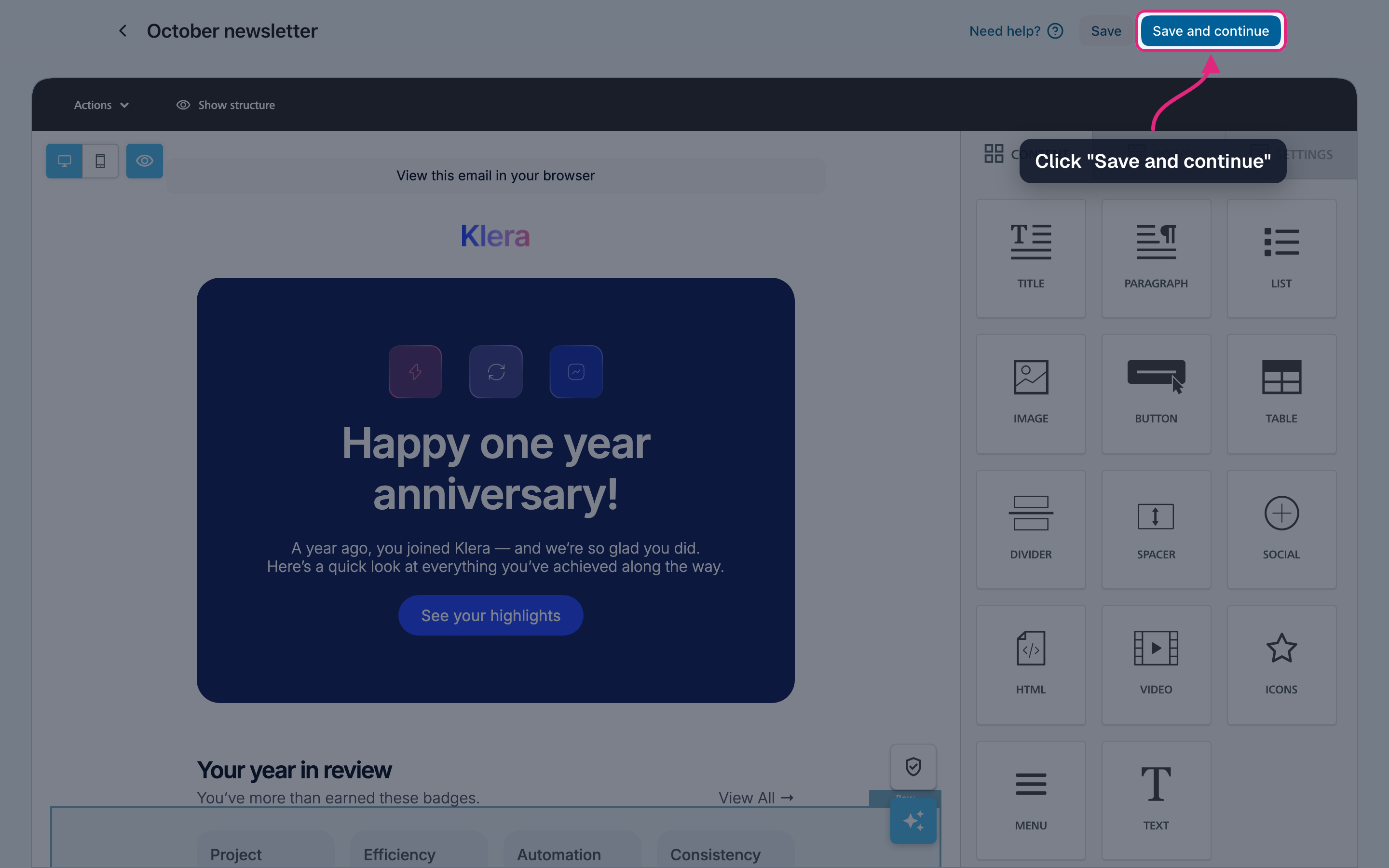
11. Click "Save and continue" to go back to the campaign details.
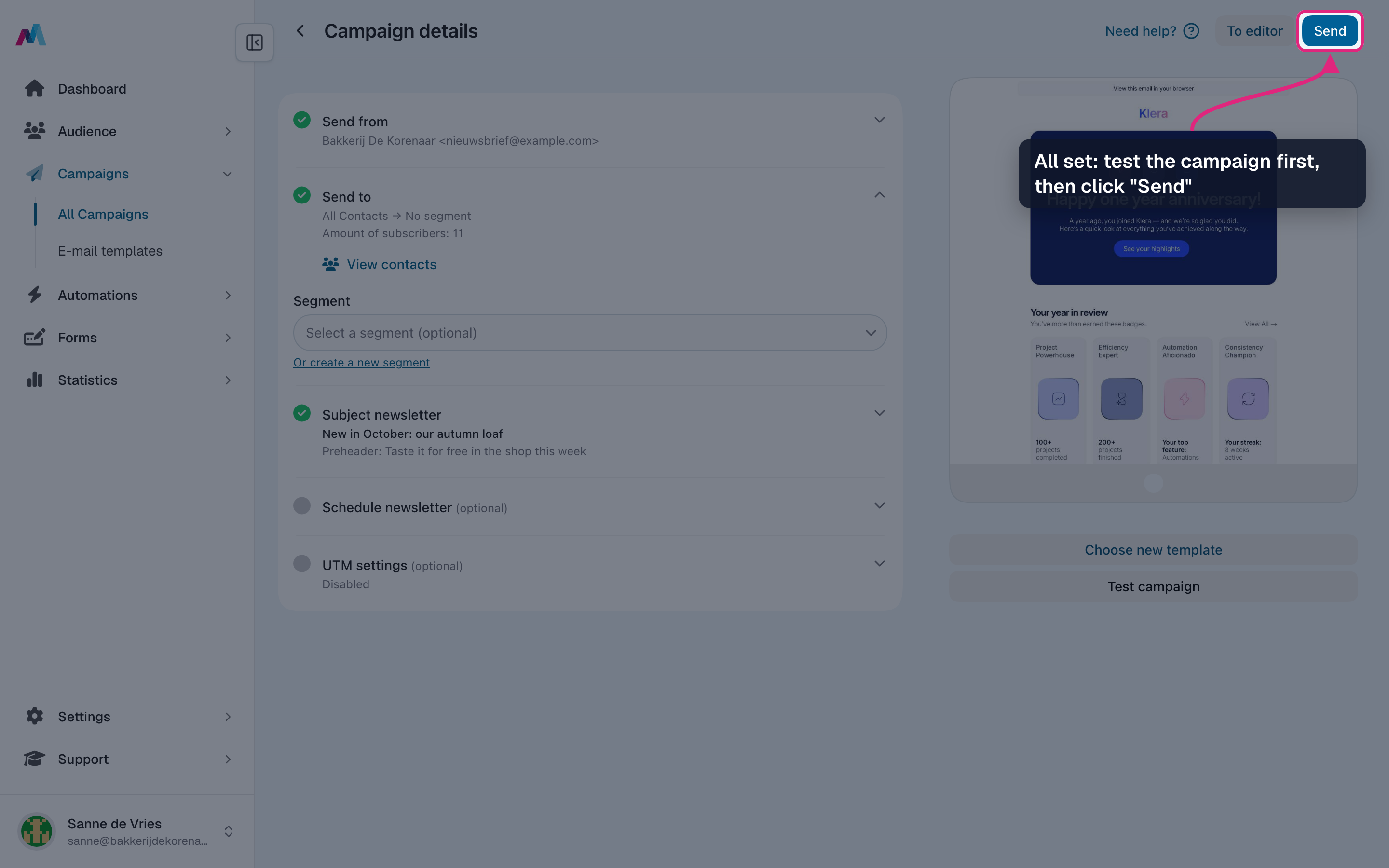
12. Every section has a green check now and the header shows "Send". Send yourself a test first with "Test campaign" (see Testing campaigns), then send or schedule it.
Send a campaign
-
Open the campaign details. When every section is complete and saved, the header shows "Send". Click it.
-
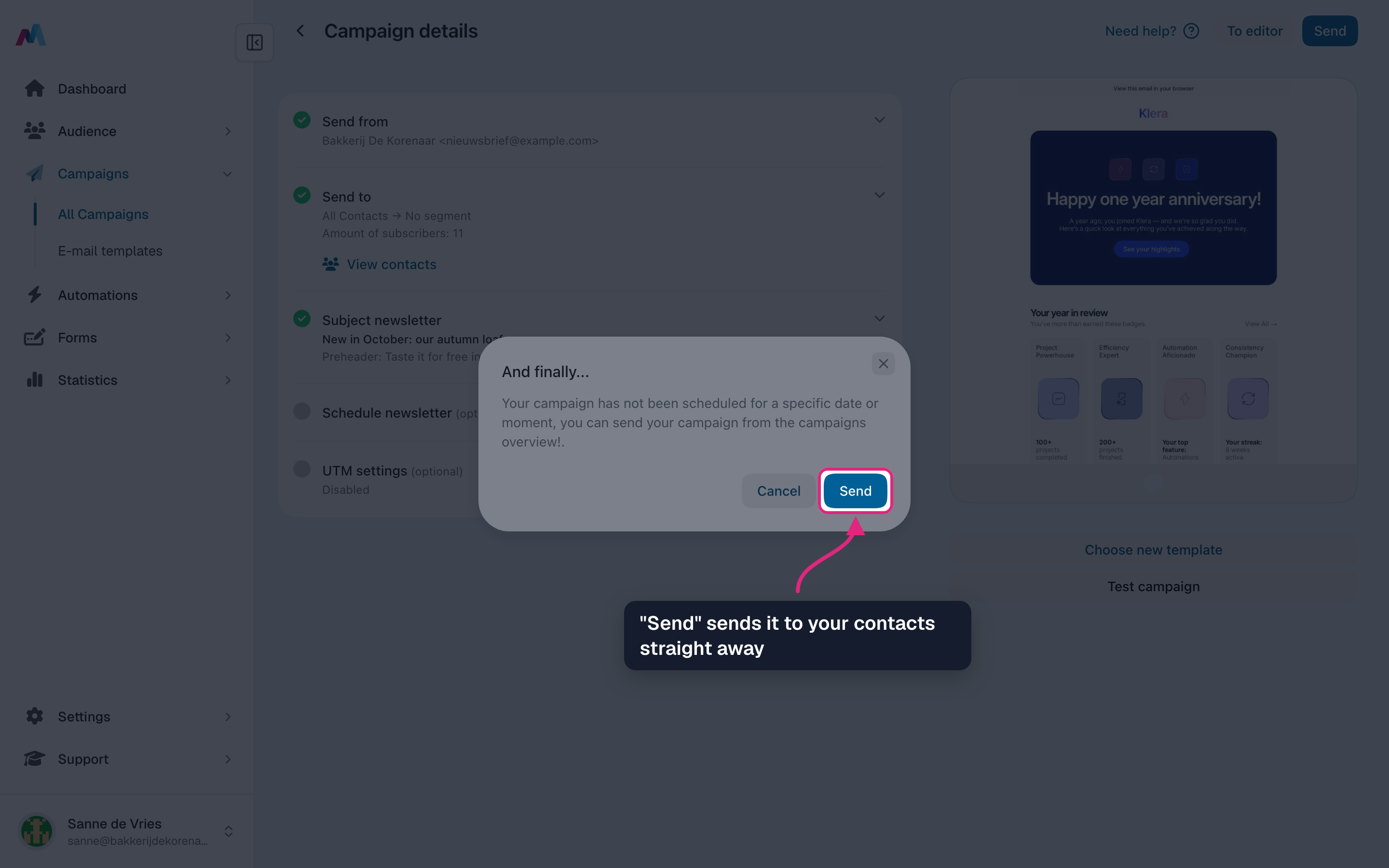
A last check opens. "Send" sends the campaign to your contacts straight away; "Cancel" takes you back.
-
You can also send from the overview: open "Actions" on the campaign's row and choose "Start sending".
-
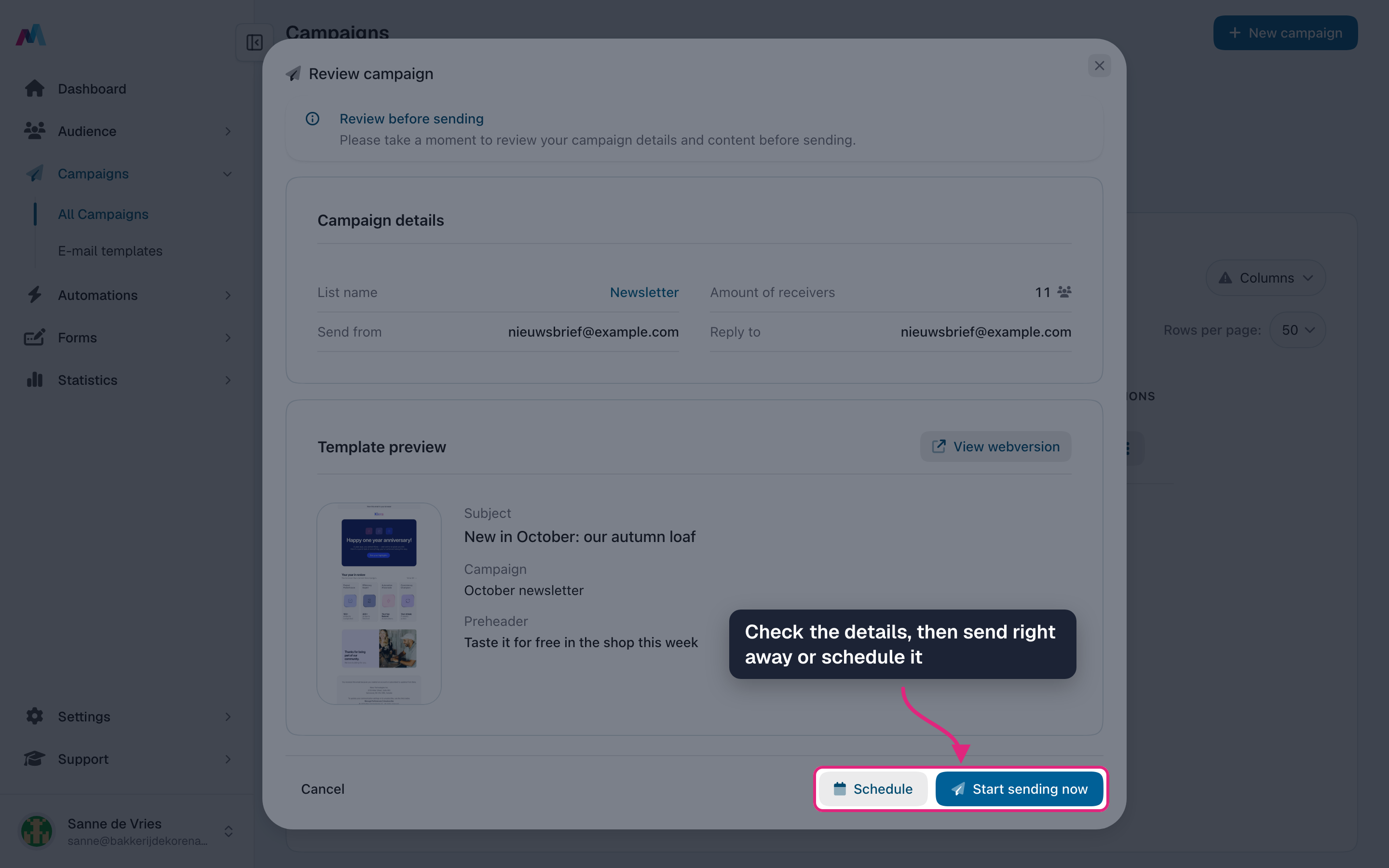
A review window shows the list, number of recipients, sender, subject and a preview. Click "Start sending now", or "Schedule" to pick a moment.
-
Want to change something first? Choose "Edit" in the same menu.
-
You are back on the campaign details. Change the settings here, or click "To editor" to change the email itself.
Audience: list vs. segmentSending to a list reaches every confirmed contact on it. Sending to a segment narrows that down to whoever currently matches the segment's rules, useful when you only want, say, customers who opened your last campaign or contacts who joined this month.
Personalise with merge tagsMerge tags like {firstname} or {company} are placeholders that get replaced with each recipient's real value at send time. Subject line, pre-header, and body all support them. Open the "Merge tags" help for the full list and how to keep them rendering nicely when a contact is missing the value.
Links are tracked automaticallyEvery link in the email body is rewritten through our redirect so we can attribute clicks to recipients. You can layer UTM parameters on top so the same clicks show up in your Google Analytics or other downstream tooling. See the "Links and click tracking" help.
Always test before sendingA test email sends the campaign to one address of your choosing, using "Test campaign" on the campaign details or "Send test email" in the overview. Check links, images and how personalisation looks. A campaign cannot be un-sent, so this is your last safety net. The "Testing campaigns" help walks through what to look for.
Scheduling pitfallsA scheduled campaign goes out at the moment you picked. Saving a schedule plans the campaign straight away, so check the date before you click "Schedule". A time in the past is refused. The time zone shown behind the time is the one from your profile, not necessarily your recipients'. The "Scheduling campaigns" help covers timing.
Sender authentication mattersIf your sender domain is missing SPF, DKIM or DMARC records, your campaign is much more likely to land in spam, or be rejected outright by mailbox providers like Gmail and Outlook. Verify the sender before sending. See the SPF, DKIM and DMARC help pages for what each does and how to set it up.
Reuse what worksA campaign you are proud of can become a template: open it from the overview, hit "Save as template" in the editor, and you have a reusable starting point for every future send. Templates capture structure and styling; you only change the content per send.
After the sendOnce a campaign has been sent, the row exposes statistics: opens, clicks, bounces, unsubscribes. The statistics screen lets you drill in further: clicks per link, opens over time, and a recipient-by-recipient view. Use it to learn what to keep doing and what to change.
Can I edit a campaign after it's been sent?
No. Once a campaign has been sent, its content is fixed so the statistics stay meaningful. Copy it to make a new campaign you can edit and send again.
Can I cancel a campaign mid-send?
No. Once sending has started there is no cancel button. Until then you can remove the schedule of a scheduled campaign via "Actions" > "Manage schedule".
Why don't I see the "Send" button?
The header of the campaign details shows "Send" only when every required section has a green check and your changes are saved. With unsaved changes it shows "Save" instead. A section without a green check still needs something, and the campaign needs a design from the editor.
How long does a campaign take to send?
Depends on audience size. Small lists go out within seconds; very large lists may take several minutes. The status column on the overview updates live as the send progresses.
Where do I see opens and clicks for a sent campaign?
Open the row's actions menu and choose "Statistics". You get opens, clicks per link, bounces, and unsubscribes, plus a per-recipient breakdown.
See also
Updated 4 days ago