
Building segment rules
Rules decide who is in a segment. You put rules in groups and choose whether a contact has to match every group (And) or just one (Or).
Rules decide who is in a segment. You put rules in groups and choose whether a contact has to match every group (And) or just one (Or).
You make one choice under "Combine groups with". The rules inside each group automatically use the opposite, and the small "and" / "or" label between rules shows which one applies.
- Groups with And: a contact must match every group, and within a group at least one rule. Example: (tag Customer or tag Workshop) and (signed up after 1 September).
- Groups with Or: a contact must match at least one group, and within that group every rule. Example: (tag Customer and signed up after 1 September) or (tag Workshop).
Rule of thumb: And makes the audience smaller, Or makes it larger.
Combine groups with And or Or
-
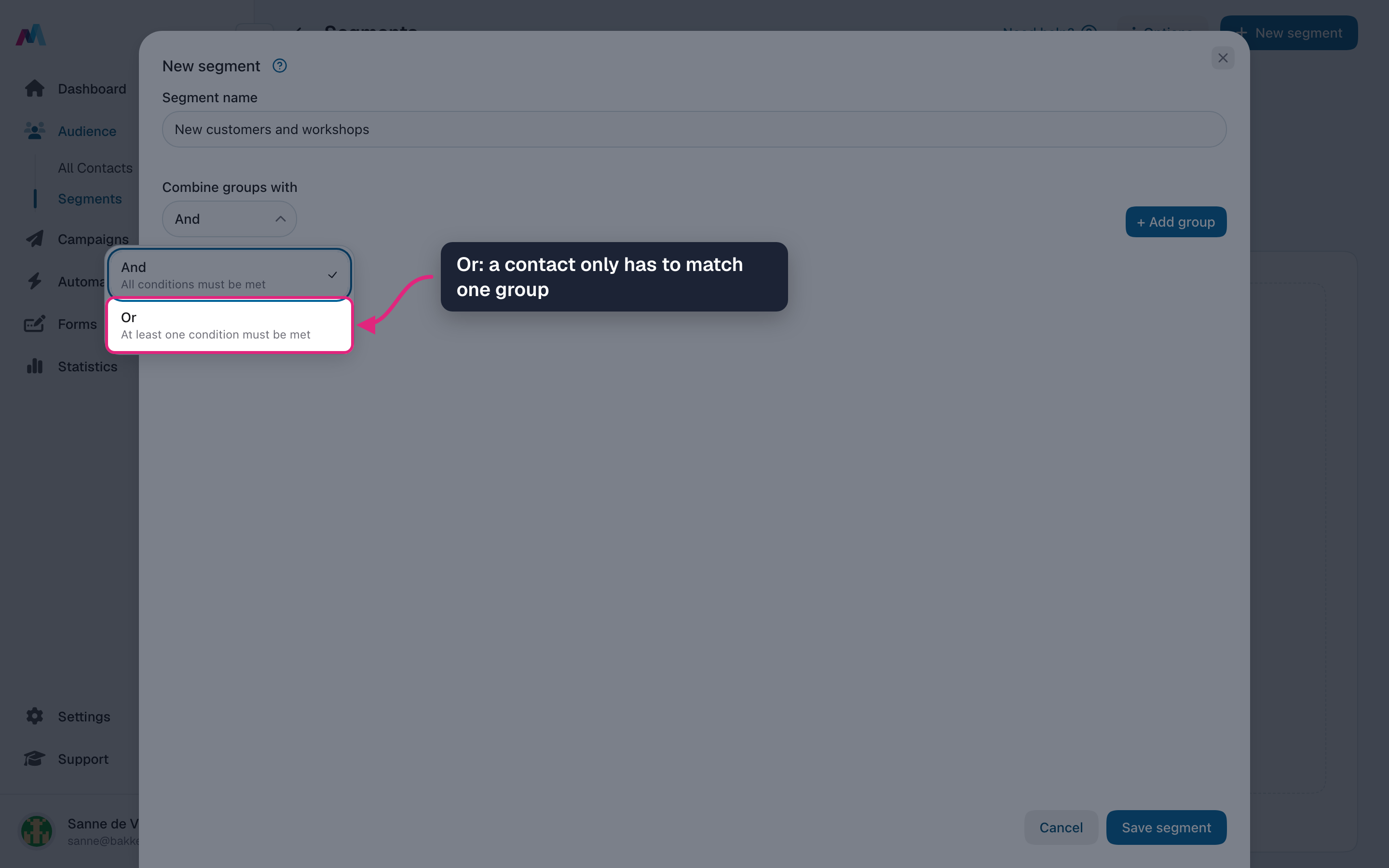
Create a new segment and open "Combine groups with". Choose "Or" when a contact only has to match one of the groups.
-
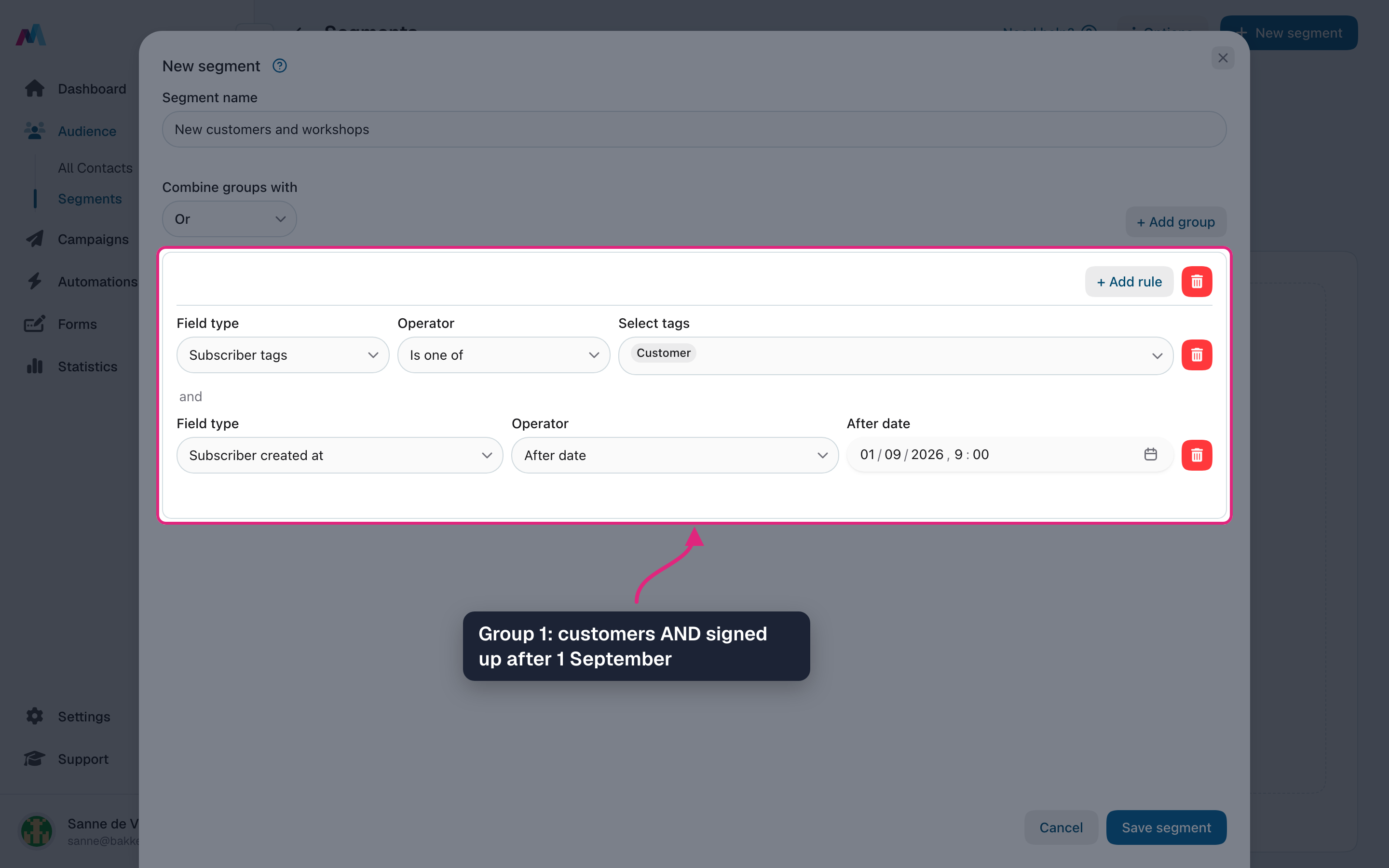
Add a group and fill it with the rules that must all match. Here: tag "Customer", then "Add rule" and "Subscriber created at", "After date", 1 September. The "and" between the rules shows that both must match.
-
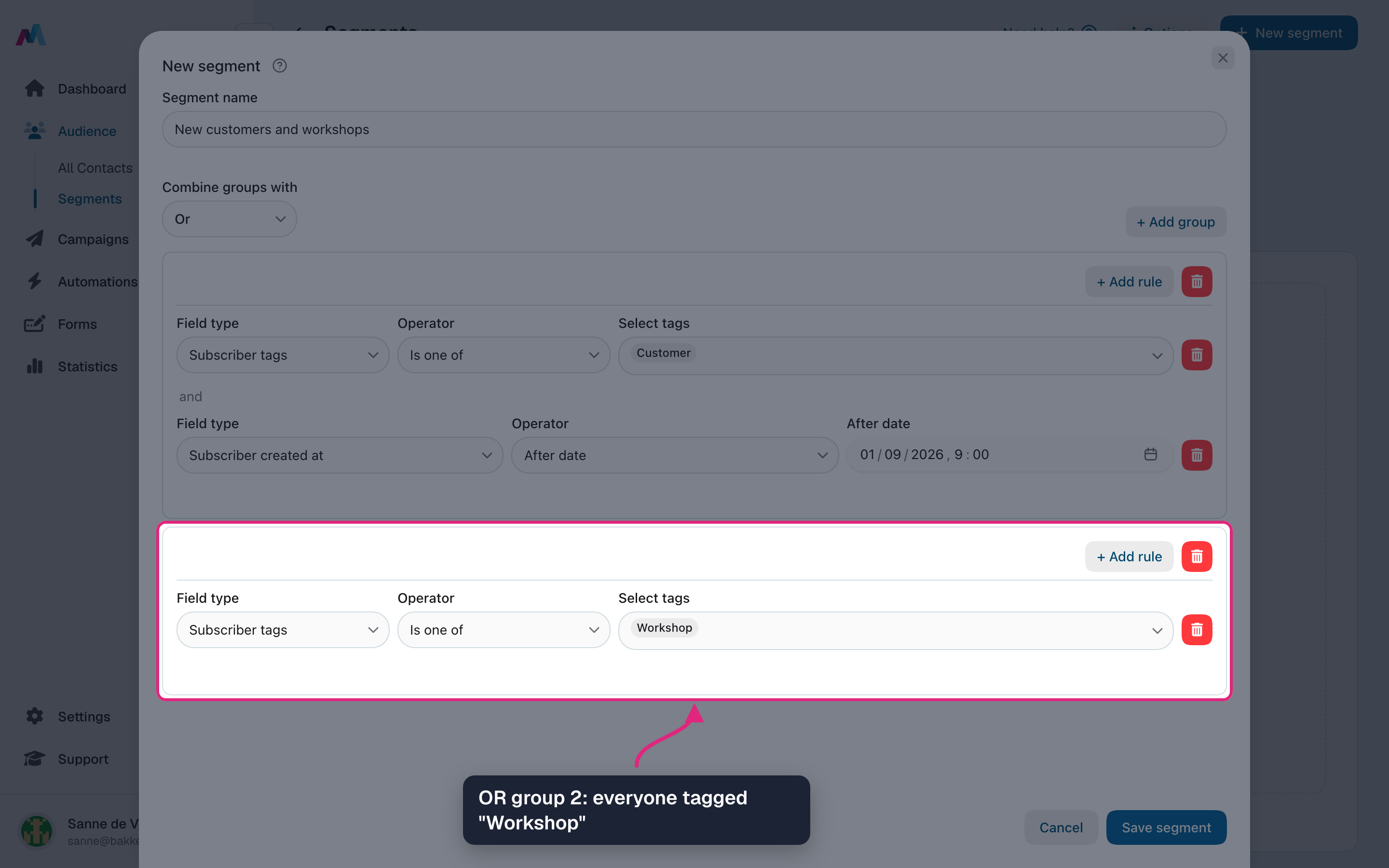
Click "Add group" again for the second option. Here: everyone with the tag "Workshop".
-
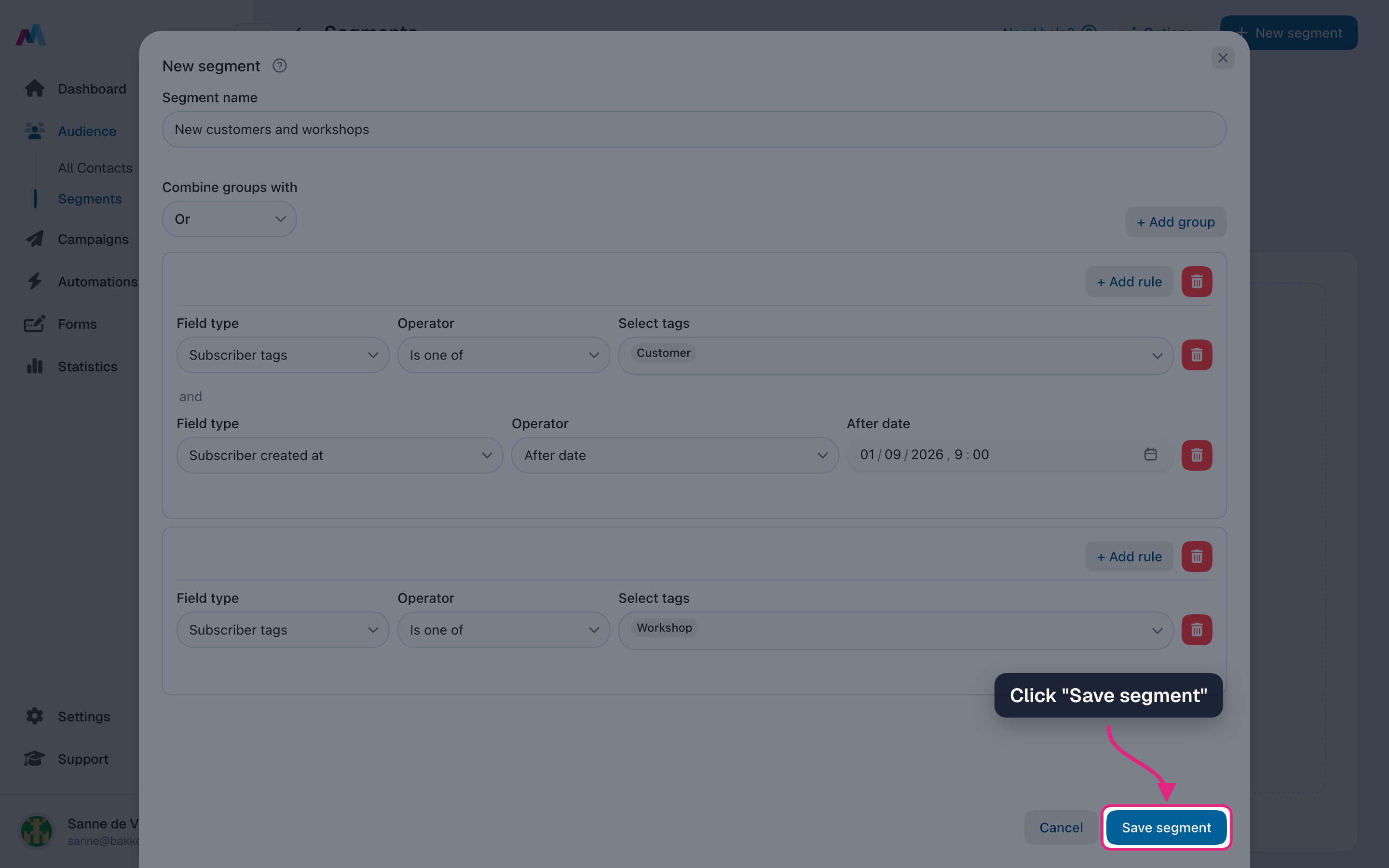
Click "Save segment". If a rule is incomplete, it is marked so you can fix it.
-
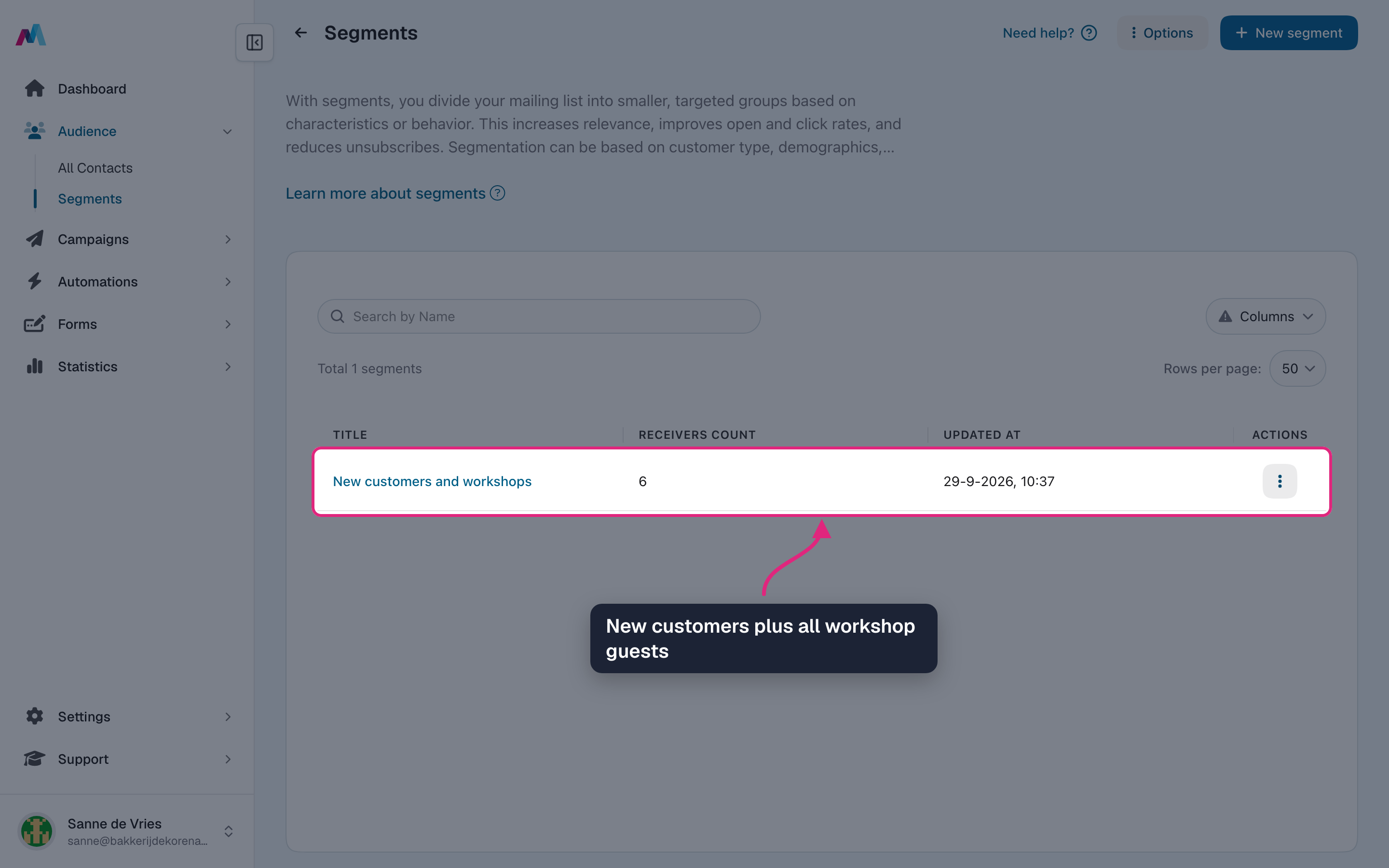
The segment now holds the new customers plus everyone who joined a workshop.
What you can filter on
- Contact details: "Subscriber email" and the fields of your mailing list, such as text, number, date, dropdown, radio and checkbox fields. Multi-line text fields can't be used yet.
- Contact interactions: when a contact last clicked a link, last opened an email, was created or confirmed their subscription.
- How contacts are tagged: "Subscriber tags" and "Subscriber topics".
Operators per field type
- Email, text, dropdown and radio: "Equals" or "Not equals". Text must match exactly, including capitals.
- Number: "Equals", "Not equals", "Greater than" or "Less than".
- Tags, topics and checkbox: "Is one of" (at least one of the selected values), "All of" (every selected value) or "None of" (none of them).
- Dates and interactions: "On date", "In year", "After date", "Before date" or "Between dates". You always pick fixed dates.
Every rule must match?Set "Combine groups with" to Or and put all rules in one group. Rules inside a group then use And, so a contact must match every rule.
One matching rule is enough?Set "Combine groups with" to And and put all rules in one group. Rules inside the group then use Or, so matching one rule is enough.
Why can't I save the segment?
Check that the segment has a name that no other segment on the list uses, at least one group, and that every rule has a field type, an operator and a value, for example at least one tag or a complete email address.
Why is "Add group" disabled?
If your account has more than one mailing list, choose the list first. The fields you can filter on come from that list.
Can I use "the last 30 days" instead of a date?
No, date rules use fixed dates. Pick the date 30 days back and update the rule when you use the segment again.
A rule says the field is no longer available
The field was removed from the mailing list or can no longer be used for segments. Remove the rule or choose another field.
Saving shows a message about campaigns
A scheduled, sending or paused campaign uses this segment, so it can't be changed right now. Wait until the campaign is done, or choose another segment in that campaign first.
See also
Updated about 1 month ago