
Fields
Fields are the details you store with each contact, such as a first name, company or birthday. You use them in forms, imports, segments, automations and to personalise your emails.
Fields are the details you store with each contact, such as a first name, company or birthday. You use them in forms, imports, segments, automations and to personalise your emails.
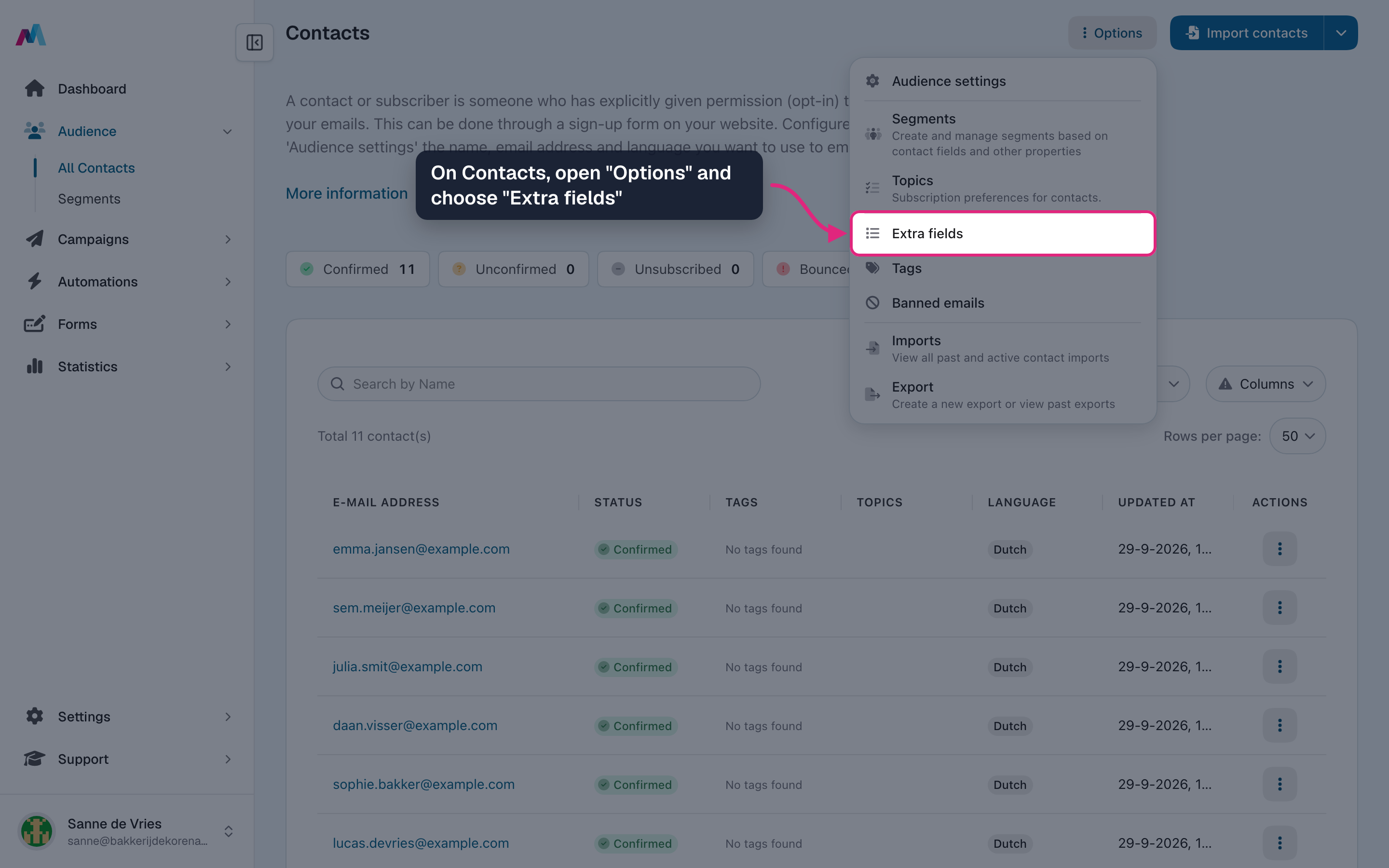
Every contact has an email address and the standard fields, such as first name and last name. Anything else you want to know about your contacts, you add as your own field. Find all fields under Contacts, "Options", "Extra fields".
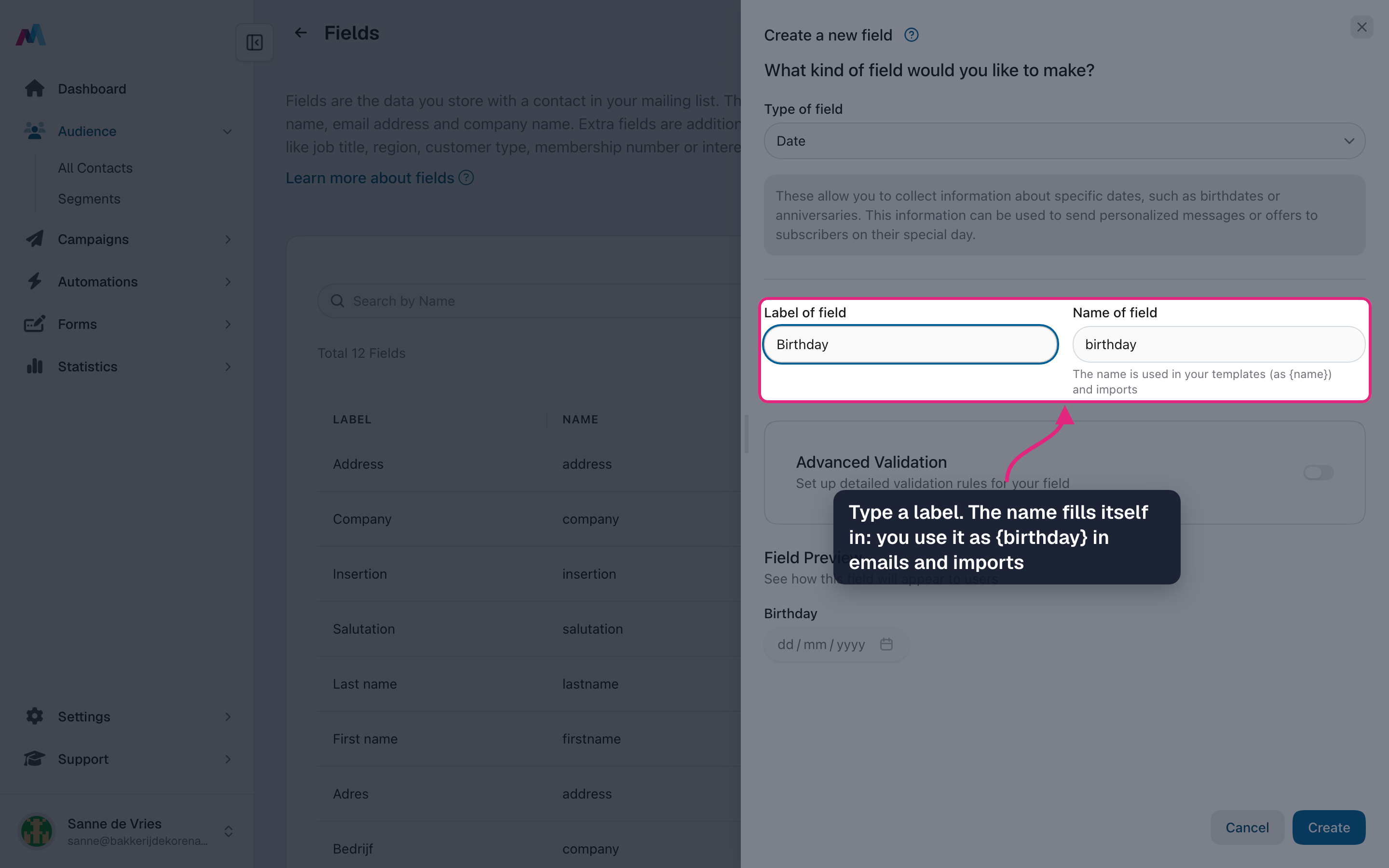
A field has a label (what you and your contacts see), a name (what you use in merge tags such as {birthday} and in imports) and a type (text, number, date, a list of choices and so on).
Create a birthday field
-
On Contacts, open "Options" and choose "Extra fields".
-
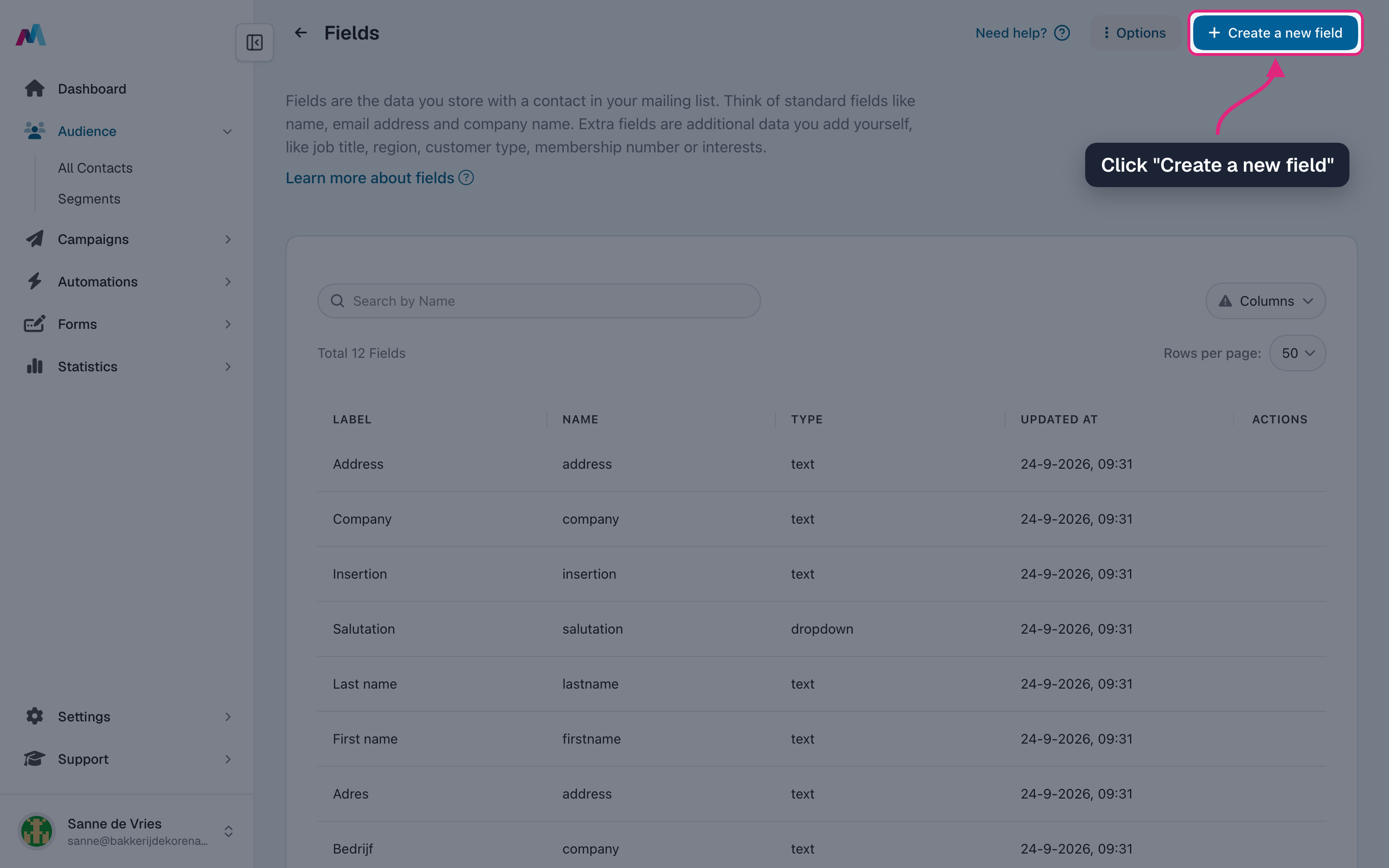
Click "Create a new field".
-
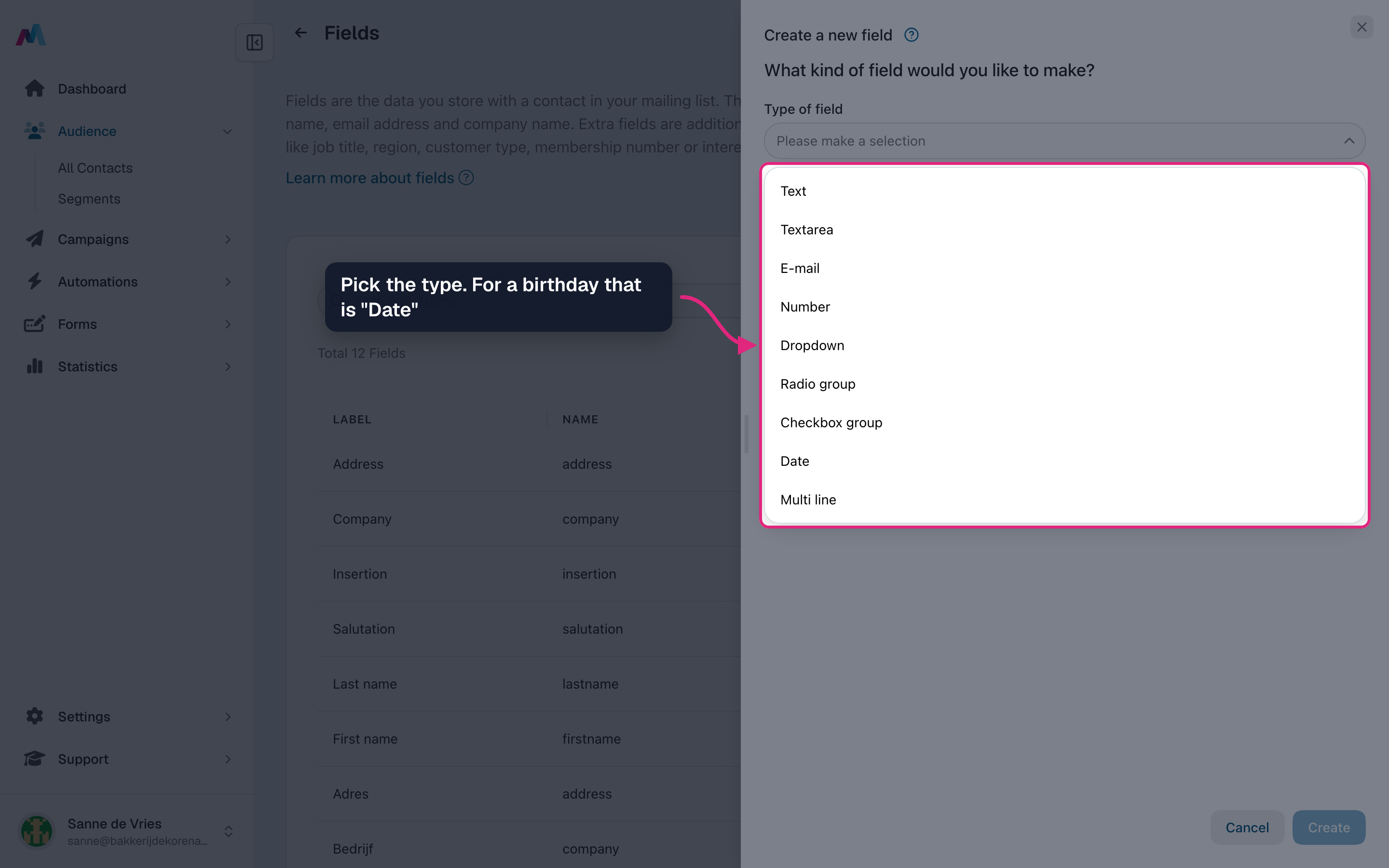
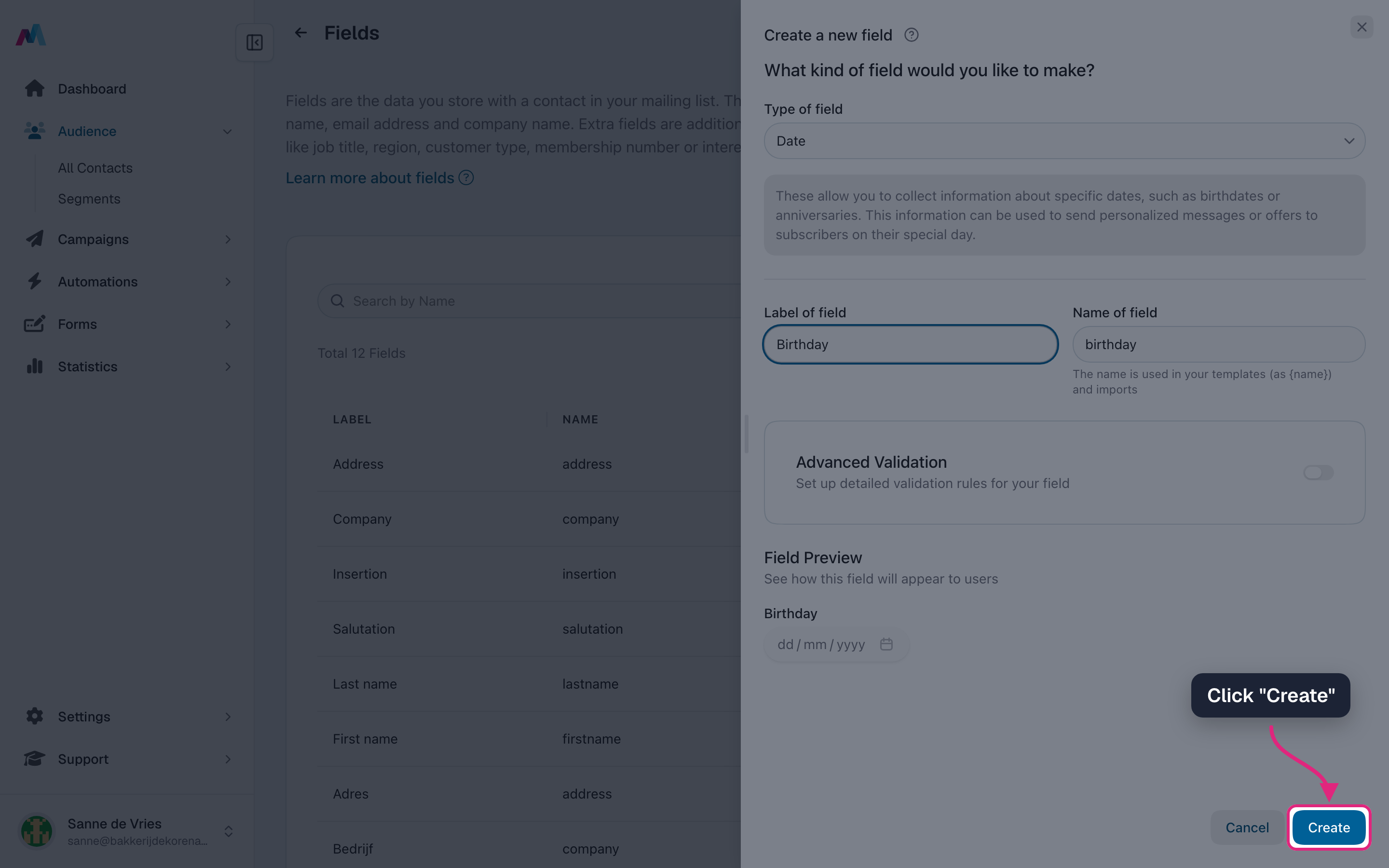
Open "Type of field" and pick the type. For a birthday that is "Date".
-
Type a label, such as "Birthday". The name fills itself in from the label. You use the name in merge tags ({birthday}) and imports, and you cannot change it later.
-
Click "Create".
-
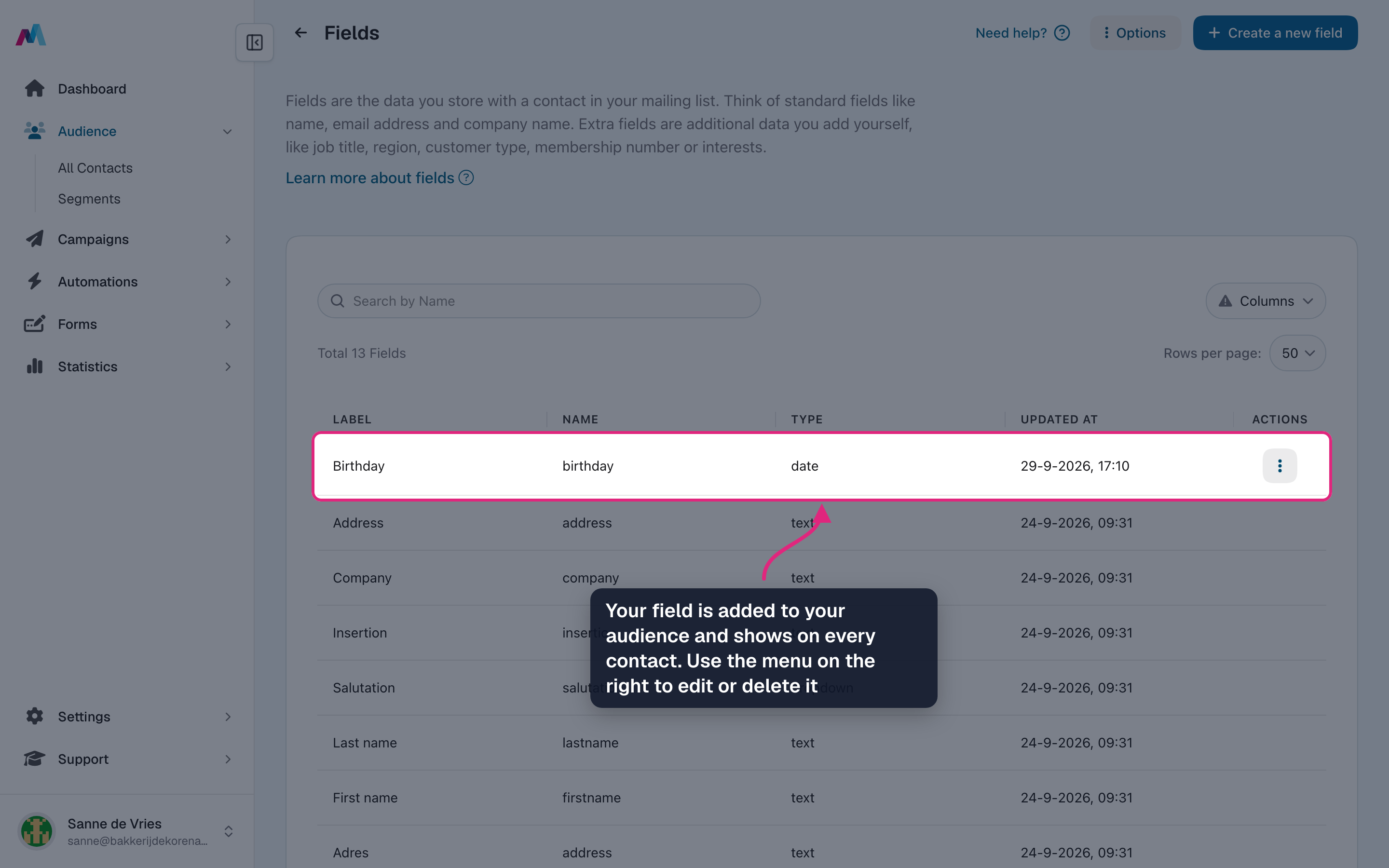
The field appears at the top of the list and is added to your audience, so it shows on every contact. Use the menu on the right of the row to edit or delete it.
Fill in a field on a contact
-
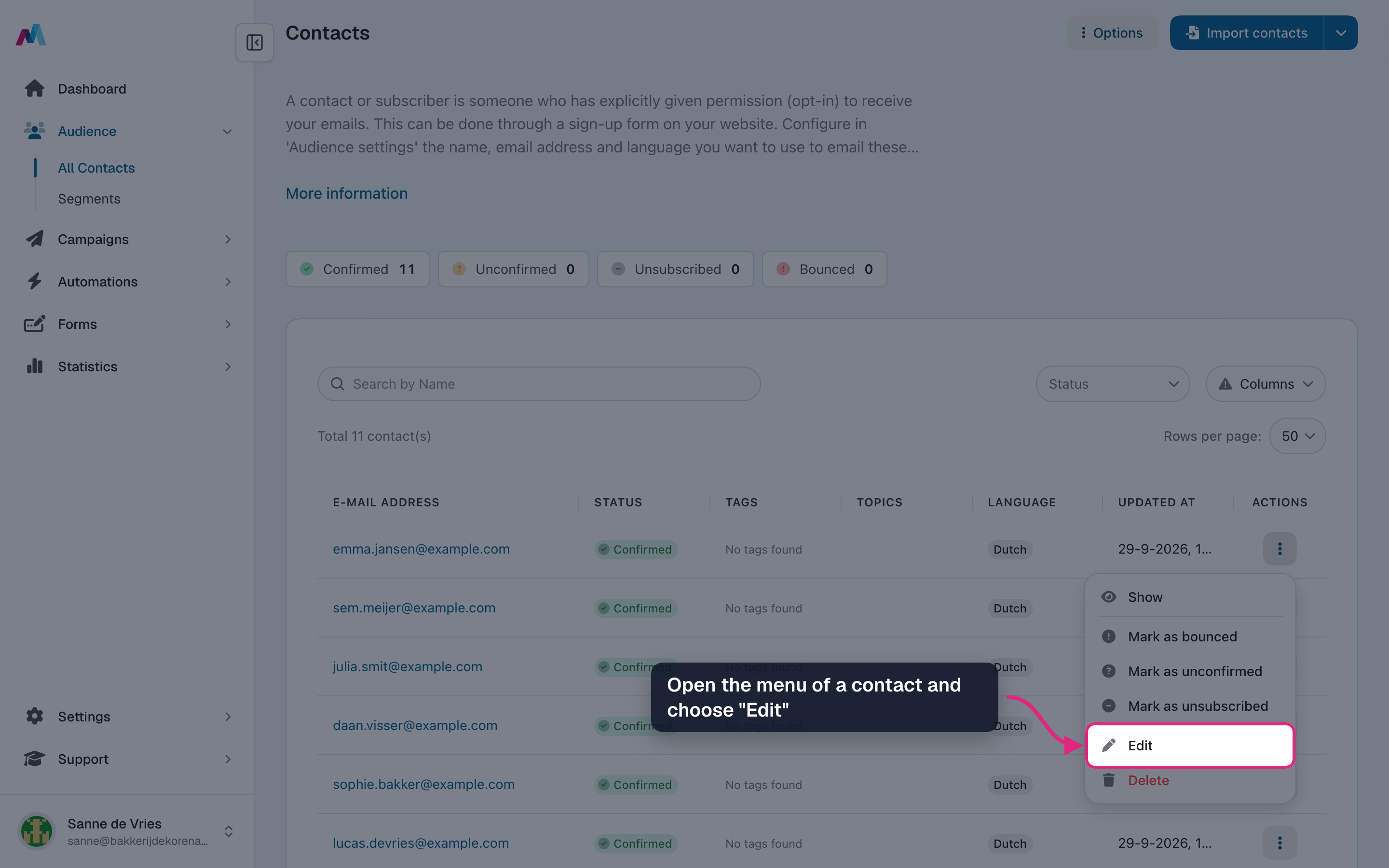
On Contacts, open the menu at the end of a contact's row and choose "Edit".
-
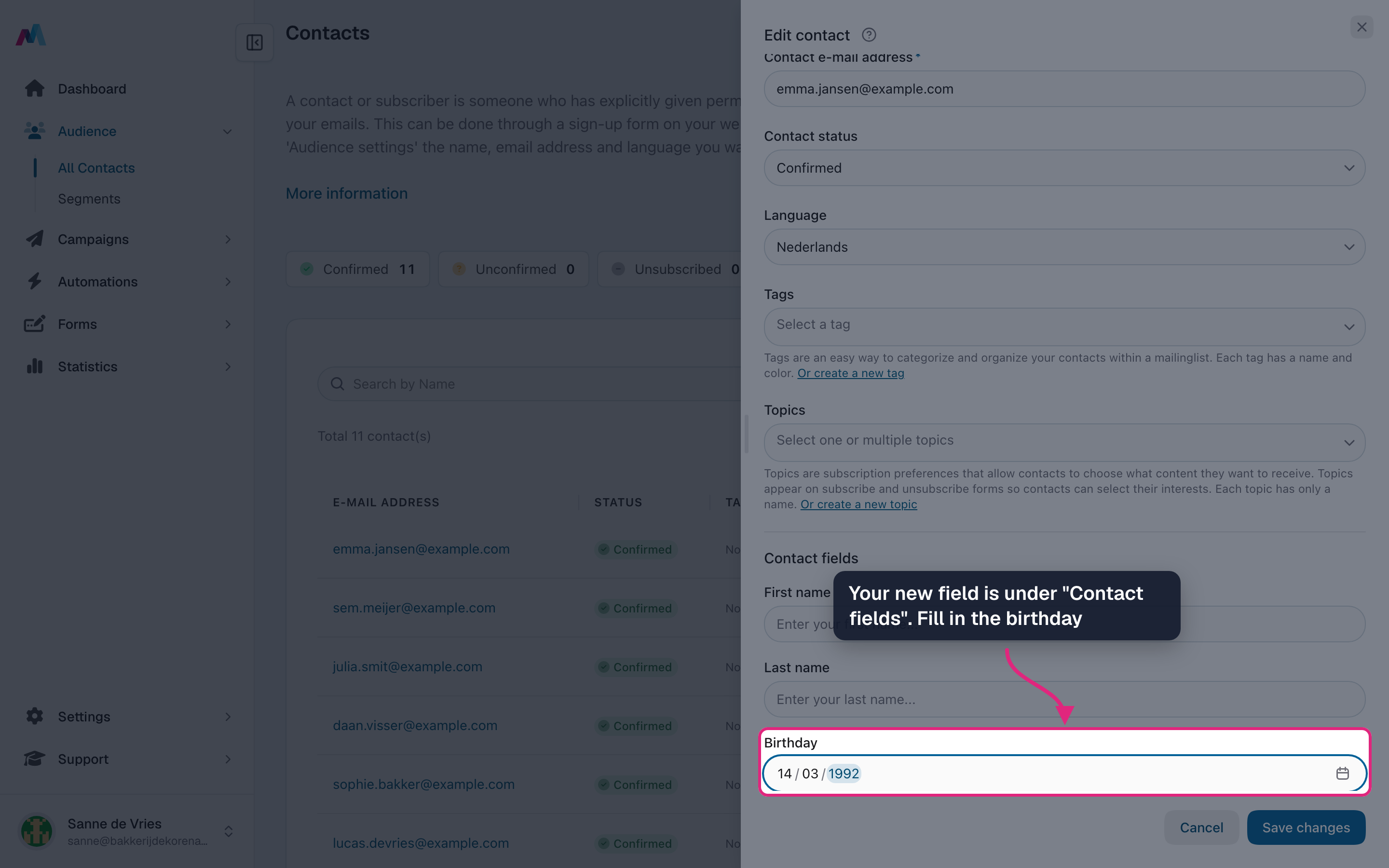
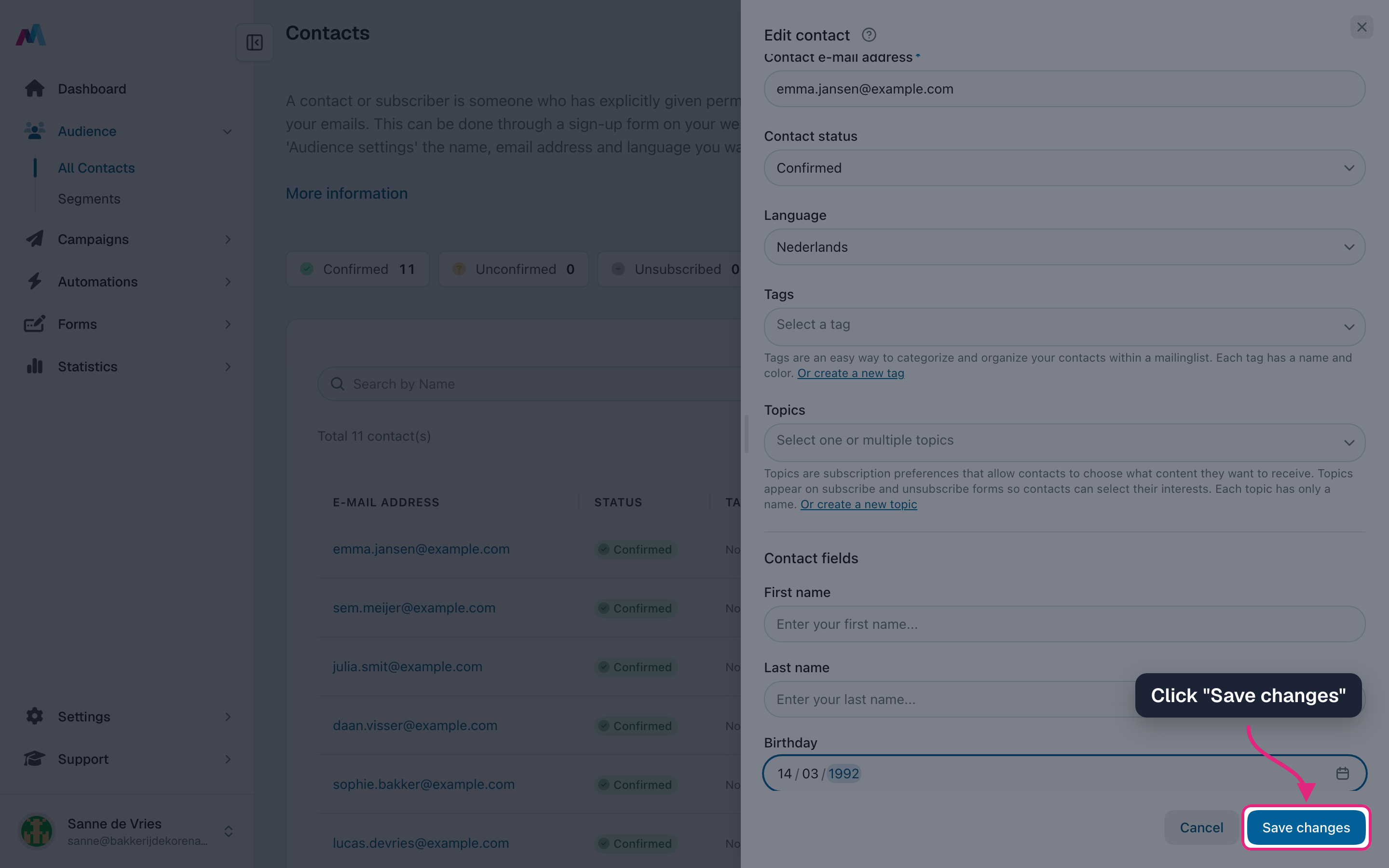
Your fields are under "Contact fields". Fill in the birthday.
-
Click "Save changes".
-
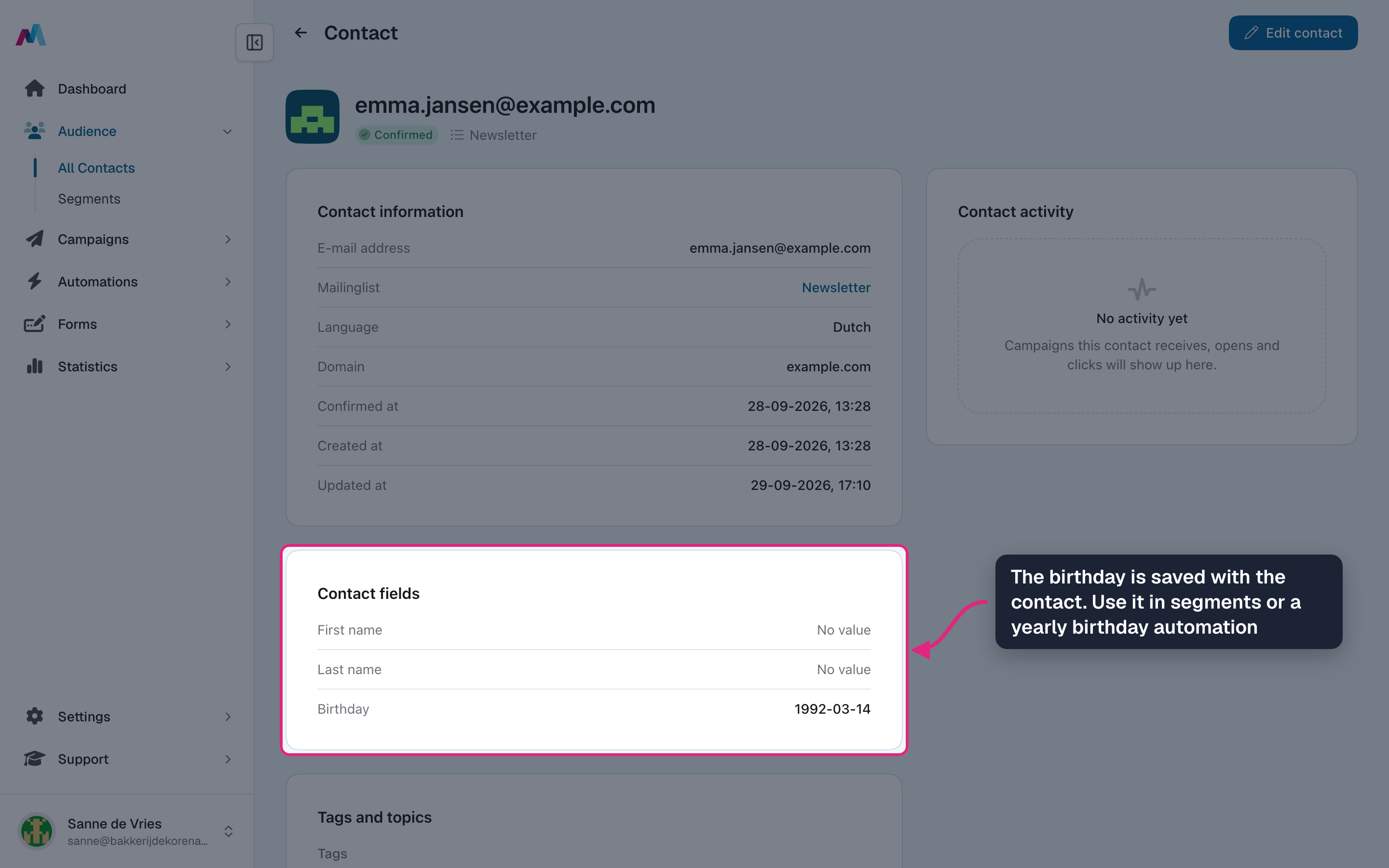
Open the contact to check it: the birthday is listed under "Contact fields". You can now use it in segments and in a yearly birthday automation.
Choose the name with careThe name and the type are fixed once the field exists. The label, placeholder, default value, limits and choices you can still change later.
Required is set per formWhether a field is required is decided on each form, not on the field itself. The same field can be optional on one form and required on another.
Deleting a field deletes its dataWhen you delete a field, the values stored for it are removed from all your contacts. Merge tags that use it stay empty from then on.
Which field type should I pick?
- Text: a short answer, such as a city or customer number. Textarea and Multi line: longer text, such as a comment or address.
- Number: a value you want to compare, such as an age or number of orders.
- Date: a birthday, anniversary or renewal date. Needed for a date automation.
- Dropdown or Radio group: one choice from a fixed list. Checkbox group: several choices from a fixed list. Add the choices with "Manage field options".
- E-mail: a second email address, such as an invoice address.
How do I store birthdays and send a birthday email?
Create a field of the type "Date" (see "Create a birthday field" above) and fill it in on your contacts, through a form, an import or by hand. Then create an automation with the trigger "Date field", pick your birthday field and choose the timing "Yearly". Only the day and month count, so the year of birth does not matter. Contacts without a birthday are skipped.
I created a field. Where do I see it?
A new field is added to your audience straight away. You see it under "Contact fields" when you create or edit a contact, as a column choice in imports, as a rule in the segment builder and in the merge tags menu of the email editor. If a field is missing there, open Contacts, "Options", "Audience settings" and check that it is selected under "Fields".
How do I add a field to my signup form?
Open the form in the editor and drag the field from the side panel into the layout. Only fields of your audience are listed there. On the form you set the label, placeholder and whether the field is required.
How do I fill fields with an import?
In the mapping step of the import, pick the field for each column of your file. No field yet? Choose "Create a new field" in that list. Dates must be written as year-month-day, for example 1992-03-14. A date in another format is not stored for that contact.
How do I personalise an email with a field?
Put the field name between curly braces, for example {firstname} or {birthday}, or pick the field from the merge tags menu in the email editor. When sending, the tag is replaced with the value of each contact. Use the name exactly as it is on the fields page. A contact without a value gets an empty spot, so write the text around the tag so it still reads well.
Does the default value fill in empty merge tags?
No. A contact without a value gets an empty merge tag, whatever the default value is. To avoid gaps, send to a segment of contacts that have the field filled in.
Can I change a field's type or name later?
No. When you edit a field, the type and name are locked. You can change the label, placeholder, default value, limits and choices. Need another type? Create a new field and, if needed, fill it again with an import.
What happens when I delete a field?
After you confirm, the field and the values stored for it are removed from all contacts. This cannot be undone. A field that is still used in a segment or an automation cannot be deleted: remove it there first.
Why can't I edit or delete some fields?
Those are standard fields, such as first name, last name, company and address. Every account has them, in Dutch and in English, so the list shows both versions. They have no menu, because you cannot change or delete them. Only your own fields can be edited.
Can I build a segment on a field?
Yes. Every field of your audience is a rule in the segment builder. A date field can be filtered on an exact date, a year, before or after a date, or between two dates.
See also
Updated 4 days ago